What Each One Actually Is
If you've ever wondered whether to download an app or just open a website, you're not alone. The two options can feel interchangeable — but they work in genuinely different ways, and understanding the distinction helps you make smarter decisions every day.
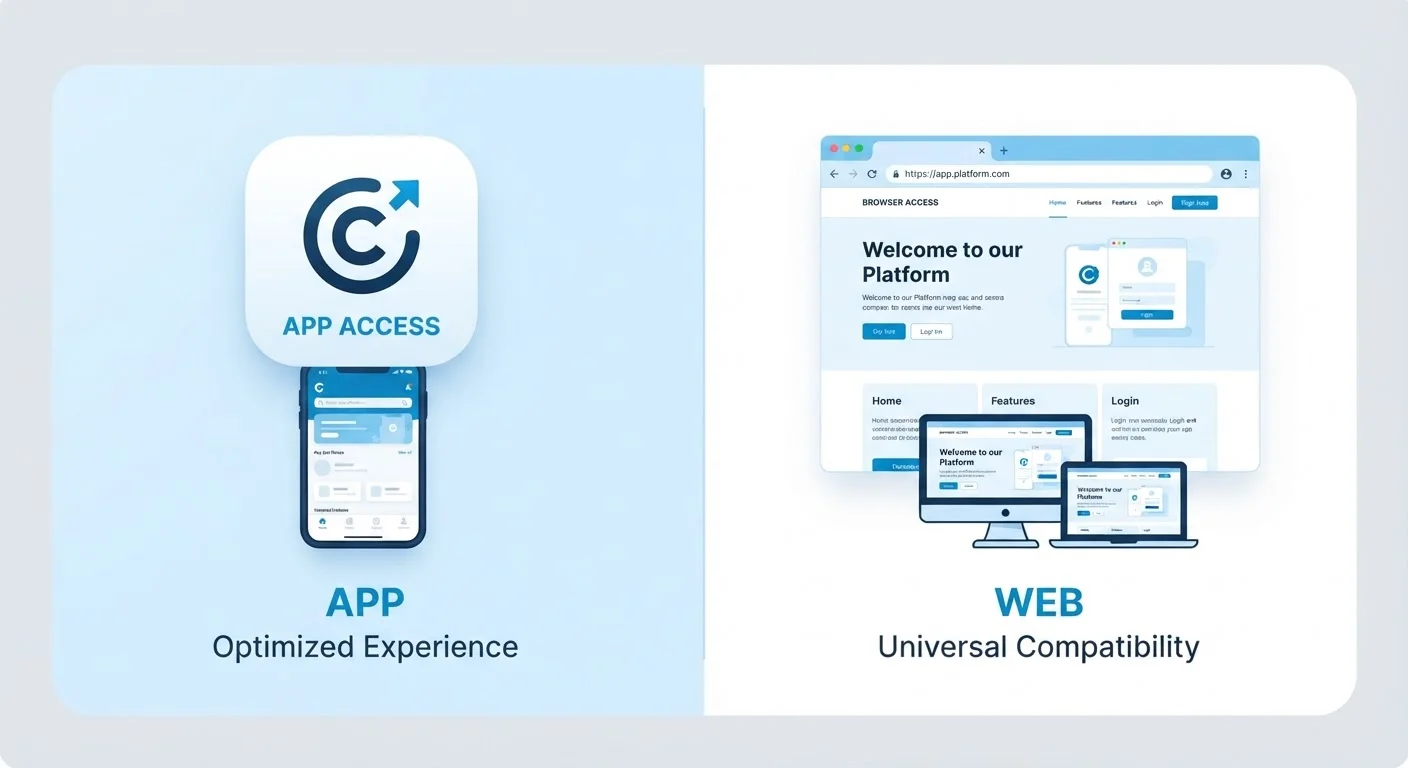
An app (short for application) is software you install directly onto your device — your phone, tablet, or computer. When you download an app from an app store, a package of code gets saved to your device's storage. That code runs locally, meaning your device does much of the work itself. Apps are purpose-built: a maps app is designed solely around navigation; a notes app is built entirely for writing.
A browser is itself an app — but a special one. Its entire job is to fetch and display web pages. When you type a web address into Chrome, Safari, Firefox, or Edge, the browser sends a request across the internet, retrieves files from a remote server, and renders them on your screen. The content lives elsewhere; your browser is the window you view it through. For more on how the web layer works, see The Internet vs. the Web.
How They Compare Side by Side
The differences become clearest when you look at specific criteria. Speed, storage, offline capability, and privacy each behave differently depending on which route you take.
| Criterion | App | Browser |
|---|---|---|
| Installation required | Yes — downloaded to device | No — already on your device |
| Storage used | Uses device storage | Minimal (cache only) |
| Speed | Generally faster to load | Depends on connection speed |
| Offline access | Often supported | Rarely available |
| Updates | Manual or auto via app store | Automatic — site updates silently |
| Permissions requested | Camera, location, contacts, etc. | Limited — mainly cookies |
| Notifications | Push notifications supported | Limited browser notifications |
Apps tend to feel snappier because they store core functionality on your device rather than fetching everything fresh each time. Browsers compensate partly through caching — saving copies of recently visited pages — but they're still more dependent on a live connection. You can explore what browsers quietly store in our guide to cookies, cache, and browsing history.
Privacy works differently too. Apps ask for permissions — access to your camera, location, or contacts — when you first install them. Browsers rely more on cookies and tracking scripts embedded in web pages. Neither approach is inherently safer; they simply expose different data in different ways. Our article on app permissions breaks down exactly what you're agreeing to when an app asks for access.
When to Use One Over the Other
Most major services — social media platforms, email providers, streaming services — offer both a dedicated app and a website accessible through a browser. So how do you choose?
Lean toward the app when you use a service multiple times a day. The faster launch time and streamlined interface add up over hundreds of interactions. Apps also tend to send notifications and support offline access — useful if your connection is unreliable. For a deeper look at what offline access actually means in practice, see what offline mode really means.
Lean toward the browser when you visit a service occasionally, when your device storage is tight, or when you simply don't want another icon on your home screen. Many websites today are highly capable — a trend called Progressive Web Apps (PWAs) — and offer an experience close to a native app without requiring a download.
What About Progressive Web Apps?
Some websites can now behave almost like native apps — they can send notifications, load quickly, and even work offline to a degree. These are called Progressive Web Apps (PWAs). Your browser may offer an option to 'Add to Home Screen,' which creates a shortcut that opens the site in a full-screen, app-like view. It's a middle ground worth knowing about if you want the convenience of an app without the full download.
If a cluttered home screen is already a problem, keeping your apps organised offers practical approaches for tidying up.
A Note on Updates and Maintenance
One practical difference that beginners often overlook: apps need updating. When developers fix bugs or add features, you receive an update notification and must install it. Browsers, by contrast, automatically load the latest version of a website every time you visit — the site owner handles updates on their end, invisibly.
This matters for security. An outdated app can contain vulnerabilities. Keeping apps updated is genuinely important, and understanding why update prompts appear helps you respond to them confidently rather than dismissing them. Our guide on software updates explains what those notifications actually do. If you're also weighing whether a paid app is worth installing over its free browser-based alternative, free vs. paid apps covers those trade-offs clearly.