What 'Saving a File' Actually Means
Every time you save a document, photo, or video, that file has to live somewhere physical — even if it doesn't feel that way. Storage is always hardware: spinning magnetic disks, flash memory chips, or large banks of servers in a data center. The difference between cloud and local storage comes down to where that hardware is located and who manages it.
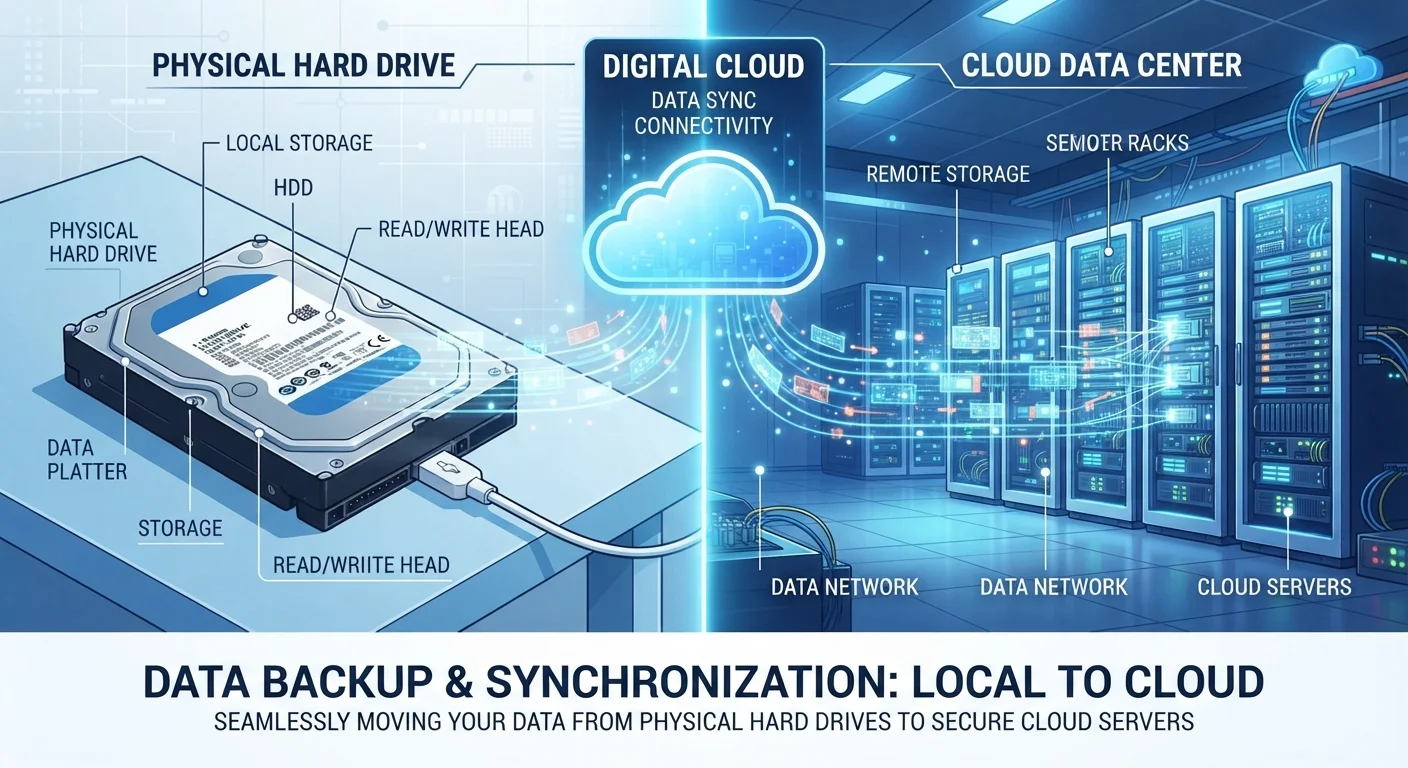
Local storage means the file lives on a device you own — your laptop's hard drive, a USB stick, or an external drive sitting on your desk. Cloud storage means the file is sent over the internet to servers owned and maintained by a company, and you retrieve it whenever you need it. For a deeper look at exactly where cloud files travel, see Cloud Storage Explained: Where Your Files Actually Go.
How Each Type of Storage Works
Local storage works entirely on your device. When you hit save, data is written to a drive inside (or connected to) your machine. No internet required. You open the file the same way — the device reads the data directly from its own storage chip or disk.
Cloud storage involves an extra step. Your file is uploaded over the internet to a remote server, then downloaded again whenever you open it. Apps like Google Drive, iCloud, and Dropbox manage this behind the scenes, so it feels seamless — but it always requires a network connection for that transfer. Your connection type — Wi-Fi or mobile data — also affects how quickly files sync.
| Cloud Storage | Local Storage | |
|---|---|---|
| Where files live | Remote servers via internet | Your own device or drive |
| Internet required | Yes, to upload and access | No, works fully offline |
| Access from multiple devices | Easy — log in anywhere | Manual transfer needed |
| Risk of data loss | Provider outage or account issue | Device damage, theft, or failure |
| Privacy and control | Depends on provider's policy | Full control, no third party |
| Typical cost model | Monthly or annual subscription | One-time hardware purchase |
| Best for | Active files, sharing, multi-device use | Large archives, sensitive data, offline use |
The Real Trade-Offs: Access, Privacy, and Risk
Cloud storage's biggest advantage is accessibility. Log in from any device anywhere and your files are there. It's also easier to share a document with someone else — you send a link rather than a physical drive.
But that convenience comes with dependencies. If your provider has an outage, or your internet goes down, access is temporarily cut off. You're also trusting a company to secure your data and honor their privacy policy. For sensitive files — financial records, personal health information — this is worth thinking carefully about.
Local storage puts you in full control. No subscription, no third-party access, no internet required. The risk flips, though: if your device is lost, stolen, or fails, those files may be gone permanently unless you've made a separate backup.
Don't Rely on a Single Storage Location
Storing files in only one place — whether cloud or local — is a risk. Hard drives fail without warning, and cloud accounts can be locked or compromised. If a file truly matters to you, make sure it exists in at least two separate locations. This applies especially to photos, financial documents, and creative work that can't be recreated.
Cost and Capacity Compared
Local storage has an upfront cost — you buy the drive once and it's yours indefinitely. A 1-terabyte external hard drive typically costs a one-time fee, and it stores data without any ongoing charges. Cloud storage usually operates on a subscription model: a small amount of free space is provided, and you pay monthly or annually for more.
For very large collections — think thousands of high-resolution photos or hours of video — local storage tends to be more economical over time. For smaller, frequently accessed files, the convenience of cloud storage often justifies its cost.
1 TB
Typical free cloud storage offered
Most mainstream cloud providers offer between 5 GB and 15 GB free; 1 TB plans require a paid subscription.
94%
Enterprises using cloud services
According to Flexera's State of the Cloud Report, the vast majority of organizations now use at least one cloud service for data storage or computing.
Which Should You Use?
The most practical answer for most people is both. Using cloud storage for your active, everyday files means you can work from your phone, tablet, or a borrowed laptop without missing a beat. Keeping a local backup of your most important files — on an external drive stored somewhere safe — means a cloud outage or account issue won't result in permanent loss.
This mirrors the backup principle sometimes called the 3-2-1 rule: keep three copies of important data, on two different types of storage, with one copy offsite (which the cloud satisfies). Just as you might use both a checking account and a savings account for different financial purposes — each serving a distinct role — combining storage types gives you the strengths of both without being fully exposed to either's weaknesses.
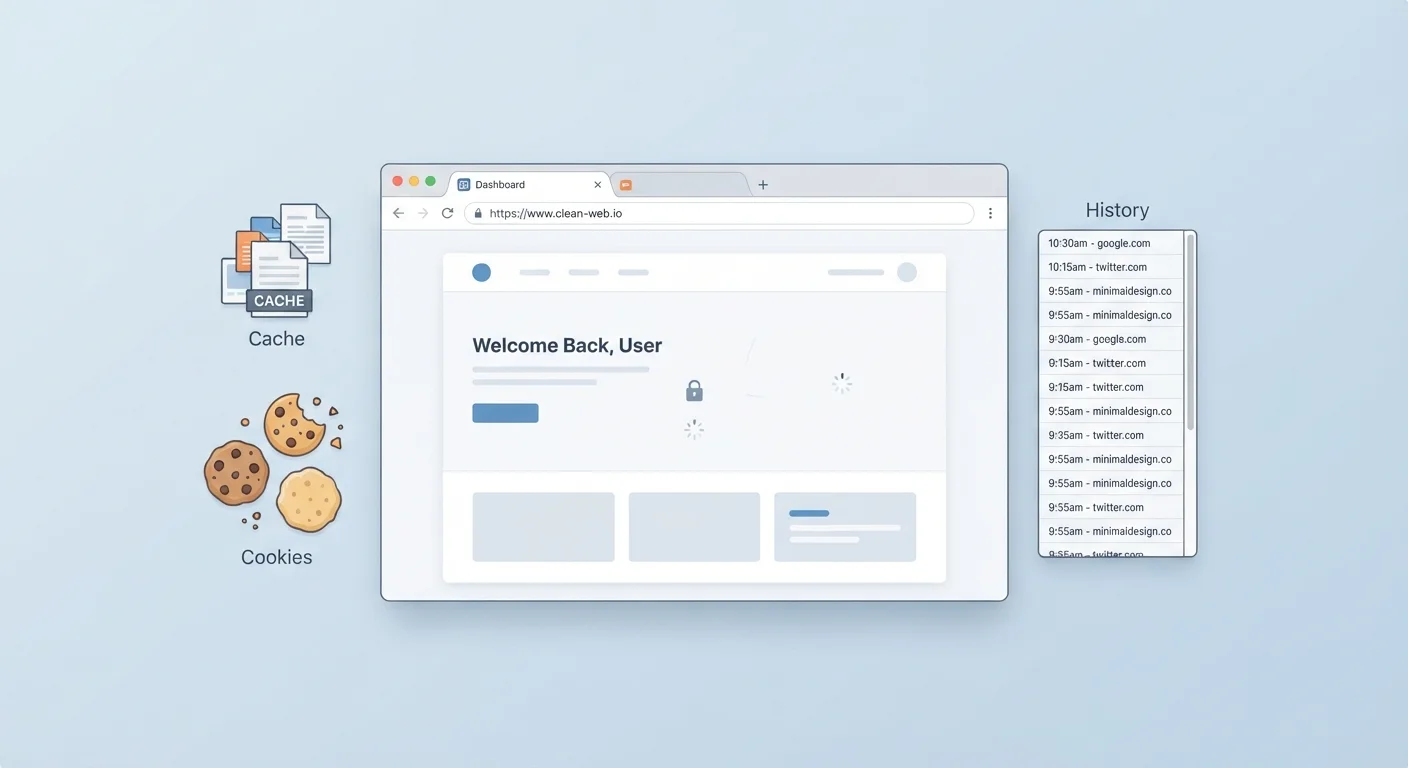
Also worth noting: some apps blur this line. Your browser, for example, stores certain data locally — caches, cookies — while syncing other data to the cloud. Understanding what browsers store locally versus remotely can help you manage your digital footprint more deliberately.
Start Your Backup Habit Today
If you currently store files only on one device, copy your most important folder to an external drive or a cloud service this week. You don't need a complex system — even a single extra copy dramatically reduces your risk of permanent data loss. Set a recurring monthly reminder to keep that backup current.