
What Does "the Cloud" Actually Mean?
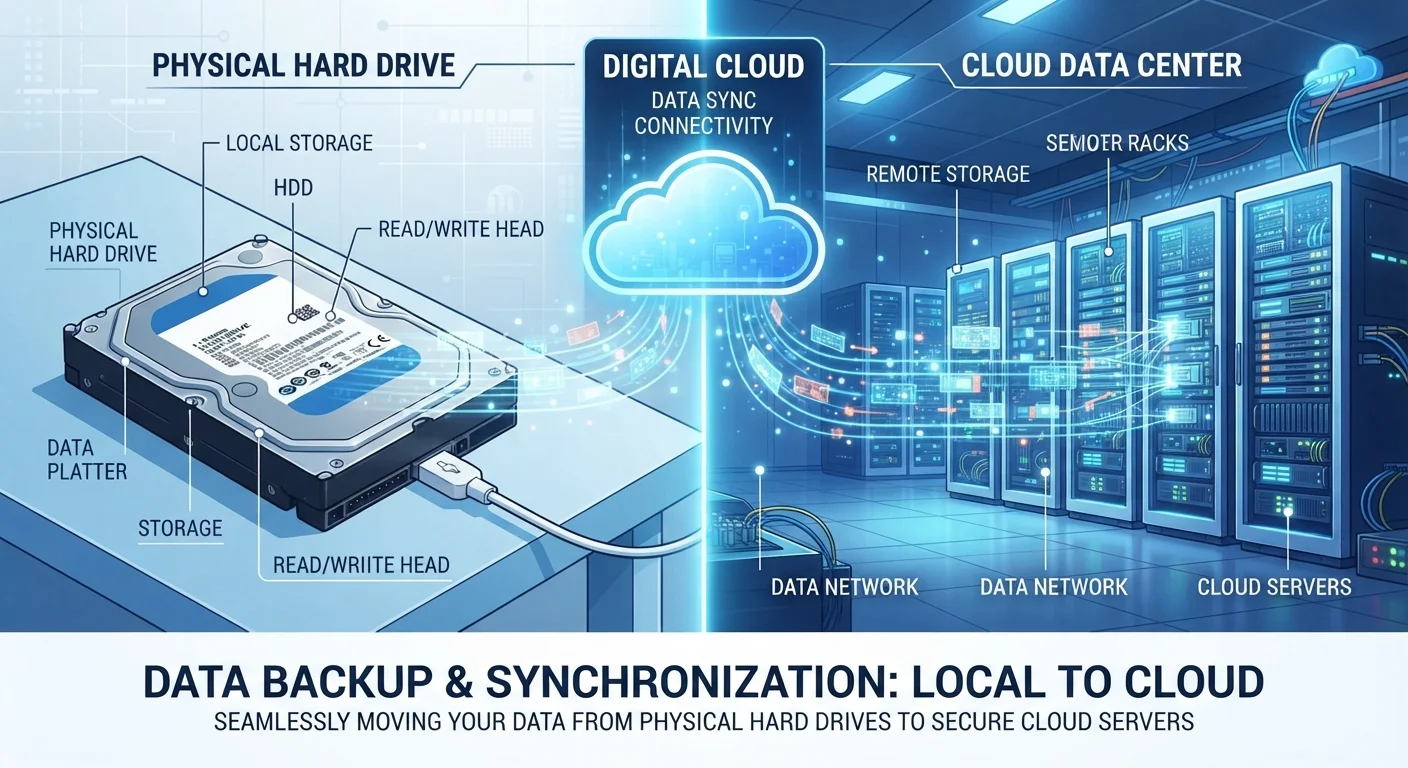
The word "cloud" is one of tech's most overused — and misunderstood — terms. It sounds abstract, even a little mystical. But there is nothing mysterious about it. When someone says your files are "in the cloud," it simply means they are stored on a computer that belongs to someone else, located somewhere else, and reachable over the internet.
Those distant computers are called servers. Servers are purpose-built machines designed to store data and respond to requests around the clock. Thousands of them are grouped together in large facilities called data centers — warehouse-sized buildings filled with humming hardware, cooling systems, and backup power generators. When you save a photo to a cloud service, it travels over the internet and lands on one of these servers.
The term "cloud" itself is borrowed from the way network diagrams used to illustrate the internet — as a vague, puffy cloud shape representing "everything out there." The label stuck, even as the underlying infrastructure became very concrete indeed.
60%+
Share of internet traffic tied to cloud services
According to Cisco's Global Cloud Index research, the majority of global data center traffic now flows through cloud infrastructure rather than traditional on-premise systems.
3×
Typical minimum copies of your data
Most major cloud storage providers maintain at least three copies of each file across separate servers or locations as a standard redundancy practice.
~100ms
Typical round-trip time to a nearby server
On a fast broadband connection, a request to retrieve a small file from a regionally close data center generally completes in under a second.
How Uploading and Downloading Actually Work
When you save a file to cloud storage, here is what happens step by step:
- You initiate the upload. Either you manually drag a file into a cloud folder, or an app does it automatically in the background.
- The file is broken into packets. Your internet connection splits the file into small chunks of data and sends them to the provider's servers.
- The server reassembles and stores the file. The data center receives those packets, reconstructs the file, and writes it to physical storage — often making multiple copies across different servers or locations for safety.
- A reference is saved to your account. The service links that stored file to your user account, so only you (or people you share it with) can retrieve it.
Downloading works in reverse: the server finds your file, breaks it into packets, and sends it back to your device, where it reassembles into the original. All of this typically happens in seconds.
Enable Offline Access for Important Files
Most cloud storage apps let you flag specific folders to be available offline. This downloads a local copy to your device so you can view and edit files even without an internet connection. Changes sync back to the cloud automatically once you reconnect — a useful habit when you travel or work in areas with unreliable connectivity.
Why Files Don't Just Disappear — Redundancy Explained
One of the most common worries beginners have is: what if the server breaks? It's a fair question. Hard drives fail. Buildings flood. Power goes out.
Cloud providers guard against this using redundancy — a strategy of keeping multiple copies of your data in more than one place. If one server fails, another takes over seamlessly, and you never notice. Some providers store copies in data centers on different continents for protection against large-scale regional events.
This is actually one of cloud storage's biggest practical advantages over keeping files only on a single laptop or phone, where a single hardware failure could mean permanent loss. For a deeper look at how cloud and local storage compare on this and other points, see our cloud vs. local storage breakdown.
“The network is the computer. Once you can reach your data from anywhere, the device in your hand becomes just a window — the real work happens on the other side of the connection.”
— Scott McNealy, Co-founder, Sun Microsystems — a foundational voice in networked computing
How Your Devices Stay Connected to Your Files
Cloud storage becomes especially powerful when paired with device syncing. When you edit a document on your laptop, the cloud service detects the change, uploads the updated version, and makes that new version available on your phone — usually within seconds. This is why changes you make on one device appear on all your others.
The cloud service acts as the single source of truth. Rather than your phone and laptop talking directly to each other, both of them talk to the same remote server. Whichever device checks in most recently sees the latest version. Learn more about the mechanics behind this in our article on syncing across devices.
What You're Really Trusting When You Use Cloud Storage
Storing files in the cloud means trusting a company to keep those files intact, private, and accessible. That trust rests on a few pillars worth understanding:
- Encryption: Most reputable services encrypt your files — scrambling them so they are unreadable without the right key — both while data travels over the internet and while it sits on the server.
- Access controls: Your account credentials (username and password) are what separate your files from everyone else's on the same physical server. This is why a strong password matters.
- Terms of service: The provider's agreement spells out what they can and cannot do with your data. Reading at least the summary is worthwhile before storing sensitive material.
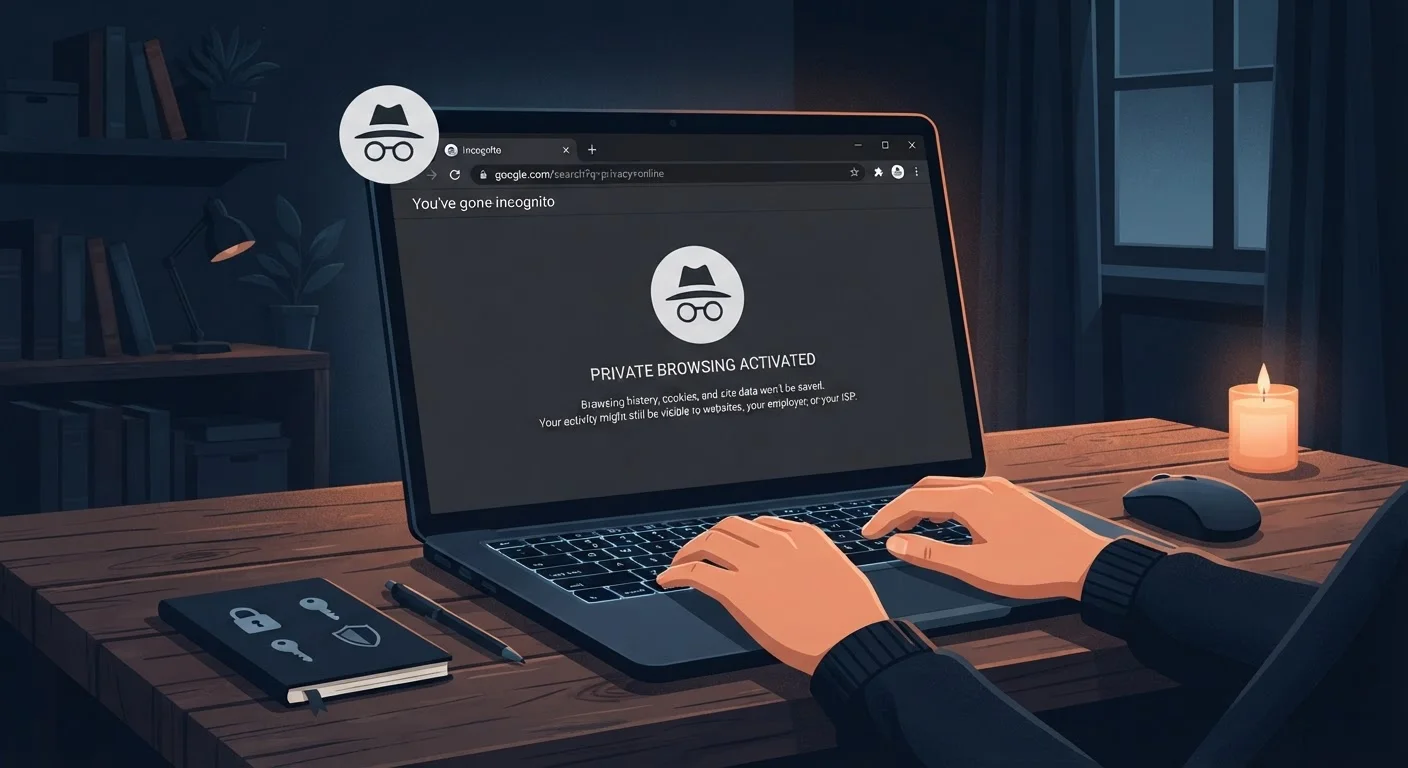
Cloud storage is not the same thing as a browser keeping records of where you've been online. If you're curious about how browsers store data locally, our explainer on cookies, cache, and browsing history covers that territory clearly.
Understanding where your files actually go — and what keeps them safe — turns cloud storage from a vague buzzword into a sensible tool you can use with confidence.
Free Storage Has Limits
Most cloud services offer a limited amount of free storage — enough for everyday documents and some photos, but not unlimited. Once you approach that limit, the service will typically alert you and offer paid upgrade options. Regularly reviewing what you've stored and removing files you no longer need is a simple way to stay within your free allowance longer.