Three Things Your Browser Stores — And Why They're Different
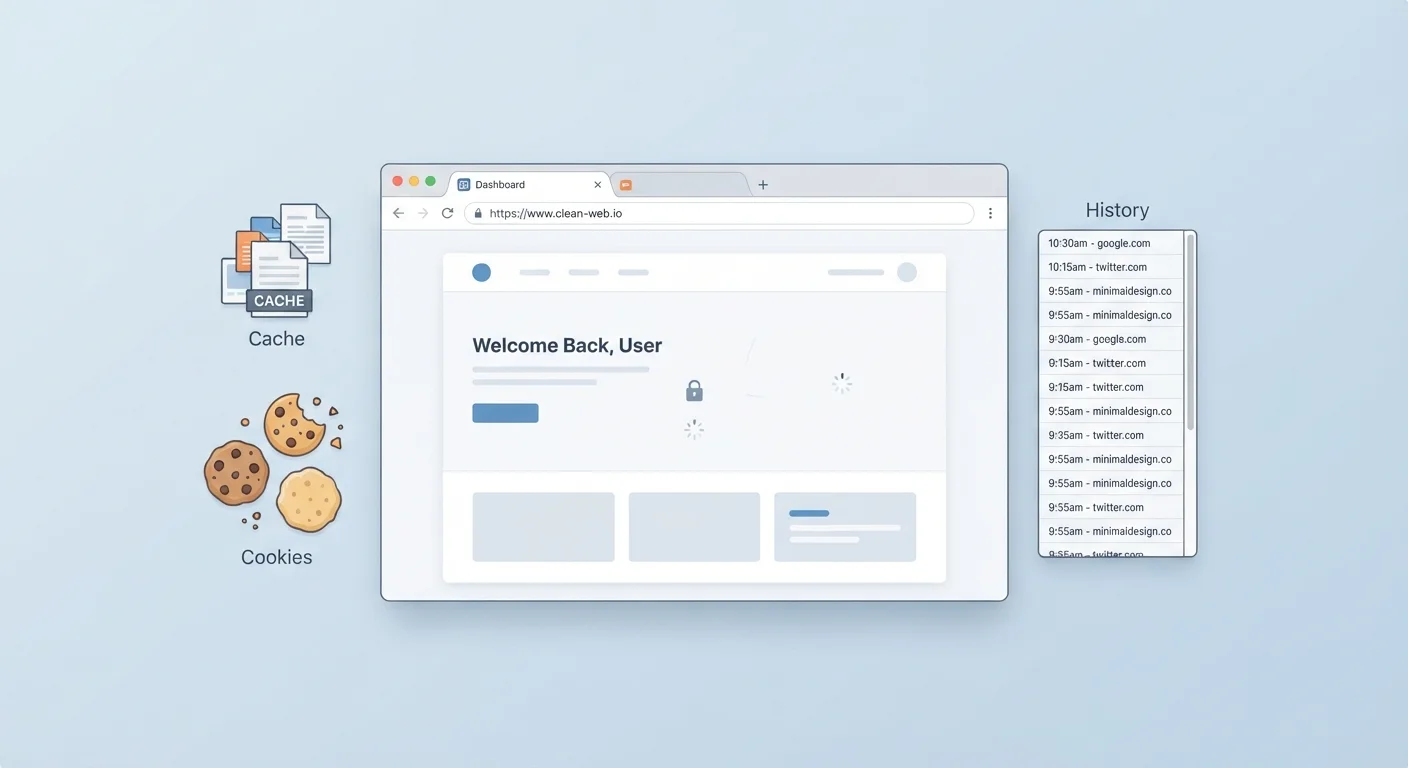
When people say "clear your browser data," they're often referring to three very distinct things: cookies, cache, and browsing history. Each one gets stored for a different reason, holds different information, and affects your experience in a different way when deleted. Understanding each one separately is the first step to managing your browser confidently.
Think of it this way: your browser is like a well-organized assistant keeping three different filing systems — one for preferences, one for shortcuts, and one for a daily journal. Mixing them up leads to confusion.
~180
Average cookies set per website visit
Research by web analytics firms has found that a typical news or retail website may set dozens to over a hundred cookies across first- and third-party sources during a single session.
Up to 50%
Page load time reduction from browser cache
Web performance studies have consistently shown that caching frequently used assets can cut perceived page load times significantly for returning visitors compared to first-time loads.
Cookies: The Memory of the Web
A cookie is a tiny text file that a website places on your device when you visit. It stores small, specific pieces of information — like the fact that you're logged in, what's in your shopping cart, or that you prefer a site in English. The next time you return, the site reads that cookie and picks up where you left off.
Cookies are not programs and cannot run code. They're just notes a website leaves for itself on your machine. There are two main types:
- Session cookies — temporary, deleted when you close your browser tab or window.
- Persistent cookies — saved for a set period of time, keeping you logged in between visits.
A third type, called third-party cookies, is set by domains other than the site you're actually visiting — typically used by advertisers to track browsing patterns across multiple sites. These are increasingly restricted by modern browsers.
Cookies and Passwords Are Not the Same
A common misconception is that clearing cookies removes saved passwords. It does not. Passwords you've asked your browser to remember are stored in a separate password manager, not in cookies. Clearing cookies will log you out of sites, but your saved login credentials remain intact.
Cache: Your Browser's Speed Booster
The cache (pronounced "cash") is a local storage area where your browser saves copies of web page files — images, stylesheets, scripts, and fonts — after you visit a site. The next time you return, your browser loads those saved copies from your device instead of downloading everything fresh from the internet. The result: pages load significantly faster.
Cached data lives on your device's storage, similar to how files are saved to your hard drive. To understand more about local versus online storage, our explainer on cloud storage vs. local storage breaks down the key differences.
The trade-off is that cache can sometimes serve an outdated version of a page if a site has updated its files since your last visit. This is why "clear your cache" is a standard troubleshooting step — it forces the browser to download fresh content.
Cache Size Has a Limit
Your browser doesn't store cached files forever. Each browser sets a maximum cache size (often between 50 MB and a few hundred MB, depending on your device and settings). When that limit is reached, the oldest cached files are automatically removed to make room for new ones. You can usually see and adjust this limit in your browser's advanced settings.
Browsing History: A Log of Where You've Been
Browsing history is the simplest of the three: it's a list your browser maintains of every URL you've visited, along with the page title and timestamp. It's purely for your own convenience — it powers the autocomplete suggestions that appear when you start typing a web address, and lets you retrace your steps to a page you visited days ago.
History is stored locally on your device and, by default, is not shared with websites you visit. However, your network (like your home router or workplace Wi-Fi) may log traffic separately — your local browser history and your network-level traffic are two different things.
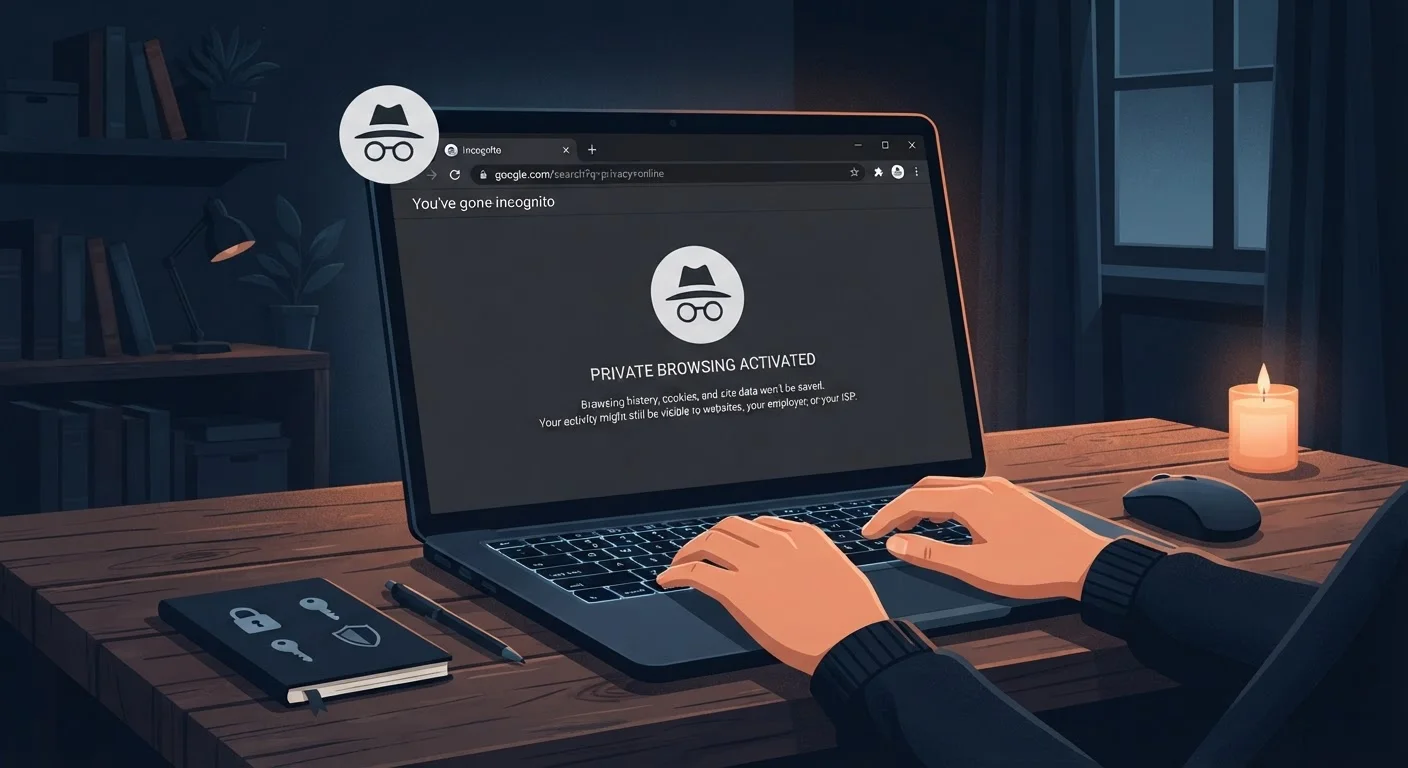
Deleting your browsing history removes it from your device only. It does not affect cookies or cache, and it does not erase any record your internet service provider may have. For a full picture of what your browser does and doesn't conceal, see our article on common myths about private browsing mode.
If you want to understand the broader context of how browsers work as tools, our piece on the difference between an app and a browser is a helpful foundation.
How to Manage Each One
All modern browsers let you clear any combination of cookies, cache, and history from a settings or privacy menu. The key is knowing which one to target:
| Data Type | Clear When | Side Effect |
|---|---|---|
| Cookies | You want more privacy or to reset site preferences | Logged out of most sites |
| Cache | A website looks broken or outdated | Pages load slower until cache refills |
| History | You share a device or want a clean record | Autocomplete suggestions disappear |
You can typically reach these settings by pressing Ctrl+Shift+Delete (Windows) or Cmd+Shift+Delete (Mac) in most browsers. Look for a "Clear browsing data" panel that lets you select each type individually and choose a time range.
Building good browser habits — including knowing when and what to clear — is one of the basics covered in our guide to internet safety habits worth building from day one.
“The browser is the most powerful application on most people's devices — and yet most users have almost no visibility into what it's doing on their behalf. Understanding how it stores data is the most basic form of digital literacy.”
— Tantek Çelik, Web standards editor and contributor to browser specification development