Why Updates Exist in the First Place
Software is never truly finished. When developers release an app or operating system, they're shipping their best work at that moment — but bugs get discovered, security flaws surface, and user needs evolve. Updates are how developers respond to all of that.
There are three main types of updates you'll encounter:
- Security updates: Patches that close vulnerabilities — gaps in the software that attackers could exploit to access your data or device.
- Bug fixes: Corrections for errors that cause crashes, freezes, or incorrect behavior.
- Feature updates: New tools, redesigns, or improvements to existing functions.
Understanding which type you're looking at helps you decide how urgently to act. Most update notifications don't tell you clearly which category they fall into, but you can usually find out by checking the release notes — often a small "What's New" link near the update prompt.
For a broader look at staying protected across all your devices, see our practical security checklist for everyday users.
Common Myths About Software Updates — Corrected
A lot of hesitation around updates comes from misconceptions that sound reasonable but don't hold up. Here's what the evidence actually shows.
Myth
Updates are just a way for companies to push new features I didn't ask for.
Fact
While feature updates do exist, the majority of frequent update prompts — especially on operating systems — are security patches with no visible feature changes at all.
Many people associate updates with unwanted interface changes or new tools they have to learn. That frustration is understandable, but it conflates two different things. Security patches often change nothing you can see — they fix code deep in the system that you'd never interact with directly. Skipping them because you don't want a new feature means you're also skipping the invisible fix that matters most.
Myth
If my device is running fine, I don't need to update it.
Fact
A device can appear to work perfectly while still being vulnerable. Malware and exploits operate in the background — you won't notice them until damage is done.
Security vulnerabilities are not performance issues. Your browser, email, or banking app can feel completely normal while a flaw in the code allows an attacker to intercept data or install malicious software. "Running fine" only describes what you can observe — it says nothing about what's happening at the code level. This is precisely why security researchers and governments consistently advise prompt patching even when systems seem stable.
Myth
Installing updates right away is risky because they're often buggy.
Fact
Buggy updates do occasionally occur, but they affect a tiny fraction of users and are quickly corrected. The security risk of waiting far exceeds the inconvenience risk of a rare bug.
High-profile buggy updates get significant media attention, which creates a disproportionate impression of how common they are. In practice, major operating system vendors (and most reputable app developers) test updates across thousands of device configurations before release. If an issue slips through, a corrective update typically follows within days. Contrast that with a known, unpatched vulnerability — which attackers can exploit as soon as it becomes public knowledge.
Myth
Only operating system updates matter; app updates are optional.
Fact
App updates frequently contain critical security patches. Apps that handle your data — browsers, email clients, messaging tools — are high-value targets and need to stay current.
Your operating system is the foundation, but apps are the doors and windows. Attackers routinely target popular apps because they're installed on millions of devices and often have direct access to sensitive information. Web browsers in particular are a frequent attack vector and receive regular security updates. Treating app updates as optional while keeping your OS current leaves significant gaps in your protection.
Myth
Automatic updates will slow down or break my device.
Fact
Automatic updates are designed to run when your device is idle, typically overnight. They rarely cause disruptions, and the risk of not updating is far greater for most users.
The concern that background updates drain battery or cause slowdowns is largely a holdover from earlier software eras when update systems were less refined. Modern operating systems — including Windows, macOS, iOS, and Android — schedule updates during low-activity periods and are designed to avoid interrupting active use. Occasional restarts are required, but these can usually be scheduled. For the overwhelming majority of everyday users, automatic updates are the safest and most hassle-free option available.
When to Update Immediately vs. When It's Safe to Wait
Not every update demands you drop everything. Here's a practical rule of thumb:
60%
Of breaches exploit known, patchable vulnerabilities
According to Verizon's Data Breach Investigations Report, a consistent proportion of successful attacks target vulnerabilities for which patches were already available but not applied.
15 days
Average time attackers exploit a vulnerability after disclosure
Security research has found that active exploitation of newly disclosed vulnerabilities often begins within two weeks of public announcement, underscoring the value of prompt patching.
Update immediately when the update is labeled a security patch, when your operating system (Windows, macOS, iOS, Android) is involved, or when the release notes mention a fix for an actively exploited vulnerability.
It's generally safe to wait a few days for feature-heavy app updates — especially if the app is working fine for you. Waiting briefly lets other users surface any unexpected bugs introduced by the update, which developers typically fix quickly.
Don't skip indefinitely. Delaying a month or more creates real risk. Known vulnerabilities become widely shared in hacker communities once a patch is publicly released — meaning unpatched devices become easier targets over time.
If update notifications themselves are overwhelming you, that's a separate problem worth solving. Our guide on managing notification overload walks through how to get your alerts under control without missing what matters.
Watch Out for Fake Update Prompts
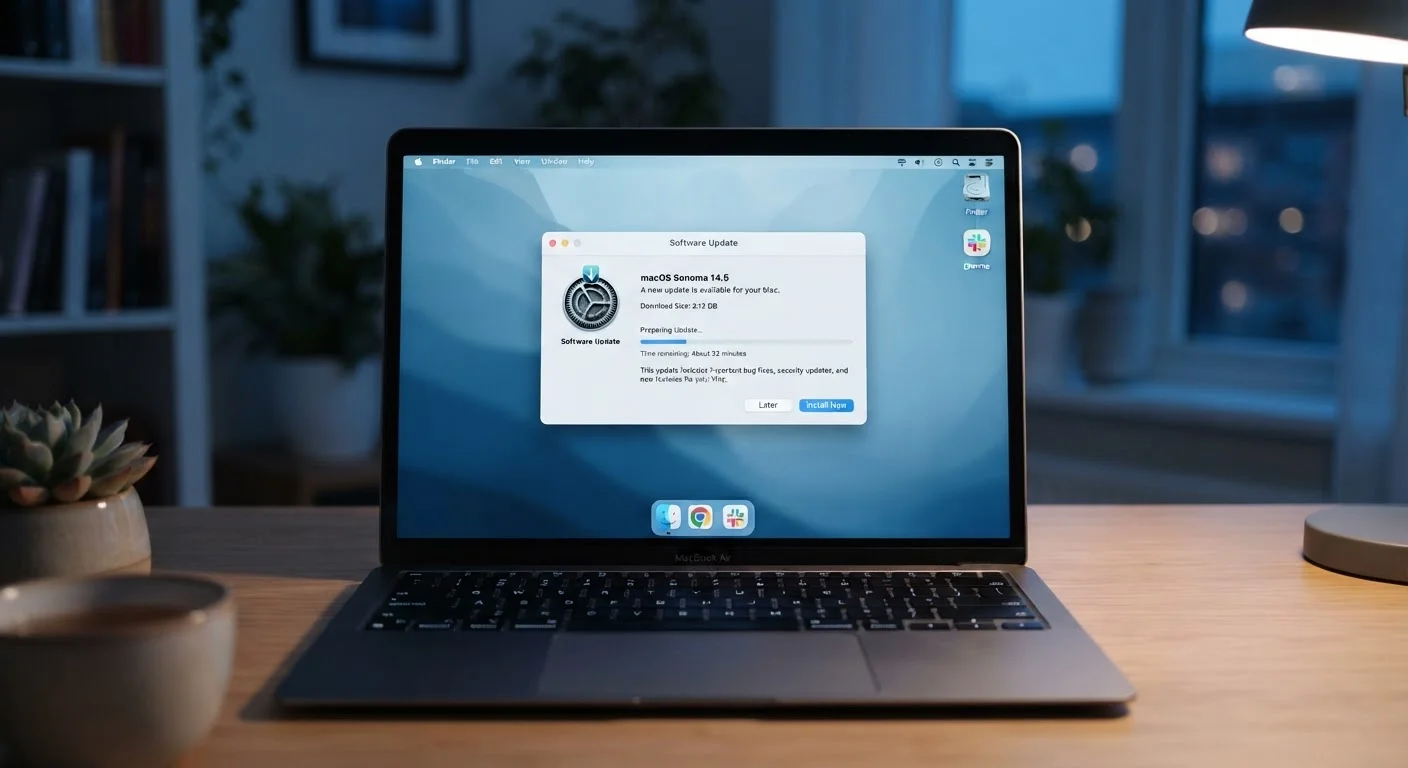
Not every pop-up claiming to be an update is legitimate. Fraudulent "update" alerts — especially on websites — are a common tactic used to trick people into downloading malware. Real operating system and app updates come through your device's built-in settings or the official app store, not through browser pop-ups or unexpected emails. If you're unsure, go directly to your device's Settings app to check for updates rather than clicking a notification you didn't expect.
Should You Turn On Automatic Updates?
For most people, yes. Automatic updates remove the decision entirely — your device installs security patches in the background, usually overnight, without interrupting your day.
The main concern people raise is that an automatic update could "break something." This does occasionally happen, but it's rare for mainstream consumer software and operating systems. Developers test updates thoroughly before pushing them to millions of users. The risk of not updating — leaving a known security hole open — almost always outweighs the small chance of a compatibility hiccup.
If you use specialized or older software for work, you may want more control. In that case, set updates to "notify me but don't install automatically" so you can review before applying.
Understanding the apps themselves also helps you make smarter decisions about what to keep updated. Our article on free vs. paid apps explains how the business model behind an app affects what gets updated and why.