Why Notifications Became a Problem
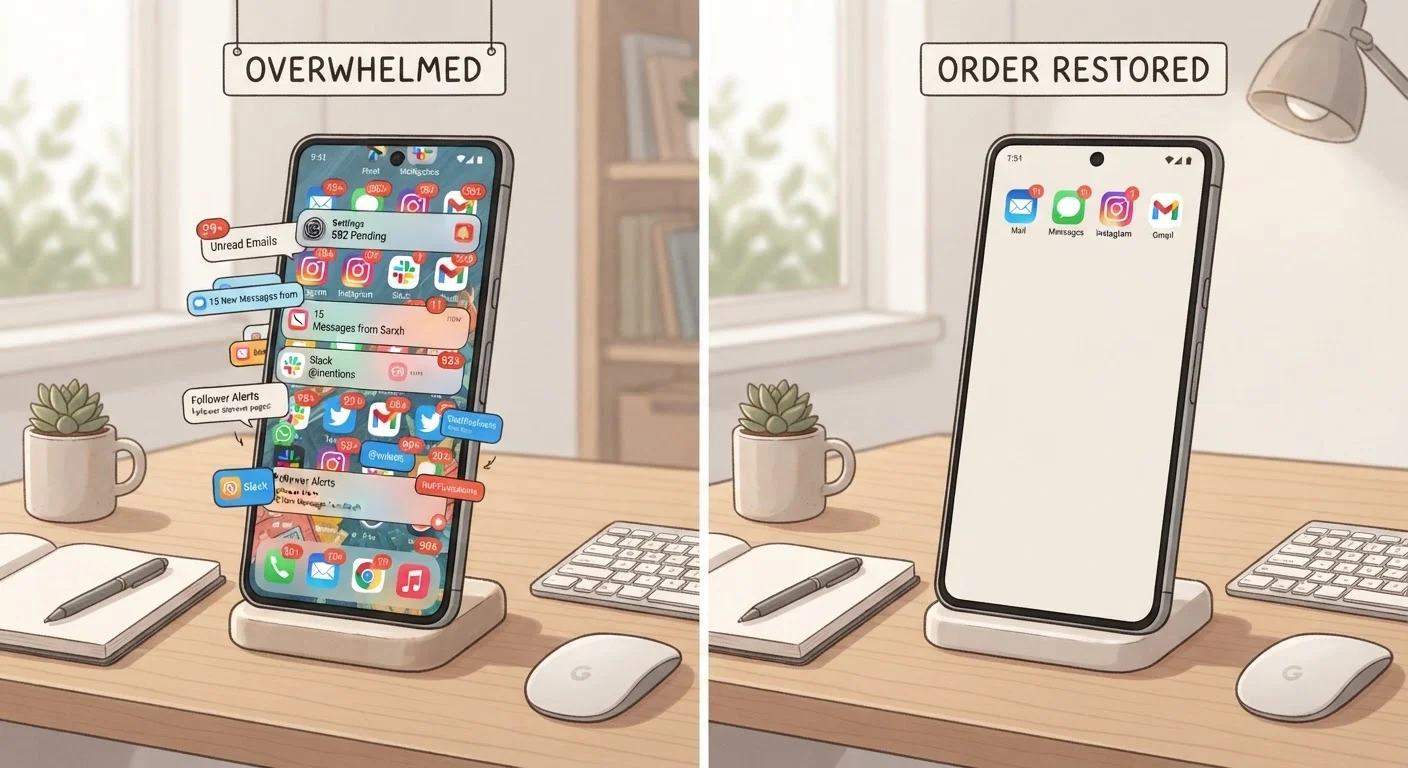
Every app you install comes with permission to interrupt you. News apps, social media, food delivery, games, email — each one defaults to sending alerts as frequently as possible. The result is a phone that buzzes, pings, and flashes dozens of times a day, pulling your attention away from whatever actually matters.
This isn't accidental. Apps are designed to re-engage you as often as possible. But constant interruptions have a real cost: research in attention science consistently shows that even a brief distraction can take several minutes of focus to recover from. Understanding that most of those alerts are optional — and that you control the settings — is the first shift in thinking that makes everything else possible.
“Every time you allow yourself to be interrupted, you're making a choice — even if it doesn't feel like one. Taking back control of notifications is really about taking back control of your own time.”
— Cal Newport, Author and professor researching the effects of digital distraction on work and attention
The Core Principle: Default Off, Enable What Counts
The most effective strategy is to flip the default: instead of allowing all notifications and trying to remove the annoying ones, turn off notifications for every app, then deliberately turn them back on only for the few that genuinely need your attention.
A good test question: If I missed this alert for two hours, would anything bad happen? If the answer is no, that app doesn't need to send you live notifications. Most apps — weather, retail, games, lifestyle — fail this test easily. A handful of categories typically pass it: direct messages from people you know, calendar reminders for time-specific events, and certain safety or banking alerts.
Audit every app's notification permission and disable non-essential ones immediately.
Most apps send alerts to drive engagement, not because the information is urgent. Removing blanket permissions puts you back in control of your own attention rather than handing it to each app's marketing team.
Set up a Focus or Do Not Disturb schedule that matches your daily routine.
Interruptions during deep work or sleep degrade both productivity and rest. Automated schedules mean you don't have to remember to enable quiet mode — it happens without effort.
Use notification grouping or Scheduled Summary to batch low-priority alerts.
Batching turns a stream of interruptions into a single review moment you control. It preserves the information without the constant distraction of individual banners.
Distinguish between banner alerts, lock-screen alerts, and badge icons — and use each selectively.
Not every notification needs to interrupt you in the moment. Badges (the red number on an app icon) let you check information on your own schedule without triggering a banner that breaks your concentration.
Say no to notification permission requests from new apps by default.
The easiest notification to manage is one that was never enabled. Declining permission upfront costs you nothing — you can always enable it later if you discover a genuine need.
Using Your Phone's Built-In Controls
Both iPhone and Android have powerful notification management tools that most people never use. Here's a plain-language guide to what's available:
- Notification Center / Shade: The panel you swipe down to see all recent alerts. A good place to spot which apps are sending the most noise.
- Per-app settings: On iPhone, go to Settings → Notifications → . On Android, go to Settings → Apps → → Notifications. Both let you block, limit, or customize alerts per app.
- Notification grouping: Rather than a banner for every email, grouping stacks them into one quiet summary — available on both platforms.
- Focus / Do Not Disturb modes: These let you silence most alerts during set times or activities (like sleep or work), while still allowing calls from specific contacts to come through.
- Scheduled Summary (iPhone): Batches non-urgent notifications into a single digest delivered at a time you choose, such as morning or evening.
If you're also trying to declutter your digital life more broadly, it's worth reviewing how you organise your apps — fewer apps generally means fewer notification sources to manage.
Start With the Noisiest Offenders
Before adjusting every app, check which ones sent the most notifications last week. On iPhone, go to Settings → Screen Time → See All Activity. On Android, long-press a recent notification to see options and usage. Tackling your top three noisiest apps first will give you the biggest immediate relief.
Quick Wins You Can Apply Right Now
You don't need to audit every app in one sitting. Start small and build the habit gradually.
If you find yourself buried in app subscriptions that arrived alongside those notifications, our guide on subscriptions you might be paying for without realising can help you review and reduce what's running in the background.
Maintaining Your Notification Setup Over Time
Notification settings aren't a one-time fix. Every new app you install will ask for permission to send alerts — and the default answer should be no until you have a reason to say yes. Make it a habit to review your notification list every few months, the same way you'd check on other background tasks that quietly pile up.
A light audit takes less than five minutes: open your notification settings, scroll through the list, and ask yourself whether each enabled app has earned that access. You'll likely find several apps you'd forgotten about. For a broader maintenance mindset, the same logic applies to other background tasks — see tasks homeowners forget until something goes wrong as an analogy for how small, regular checks prevent larger problems.
Some Alerts Are Worth Keeping
Not all notifications are bad. Security alerts from your bank, two-factor authentication codes, and direct messages from close contacts serve a genuine purpose. The goal isn't to silence everything — it's to ensure that what does reach you is worth your attention. As you also maintain other digital habits, reviewing your device security settings can help ensure security-related alerts are never accidentally muted.