Why Subscriptions Pile Up Unnoticed
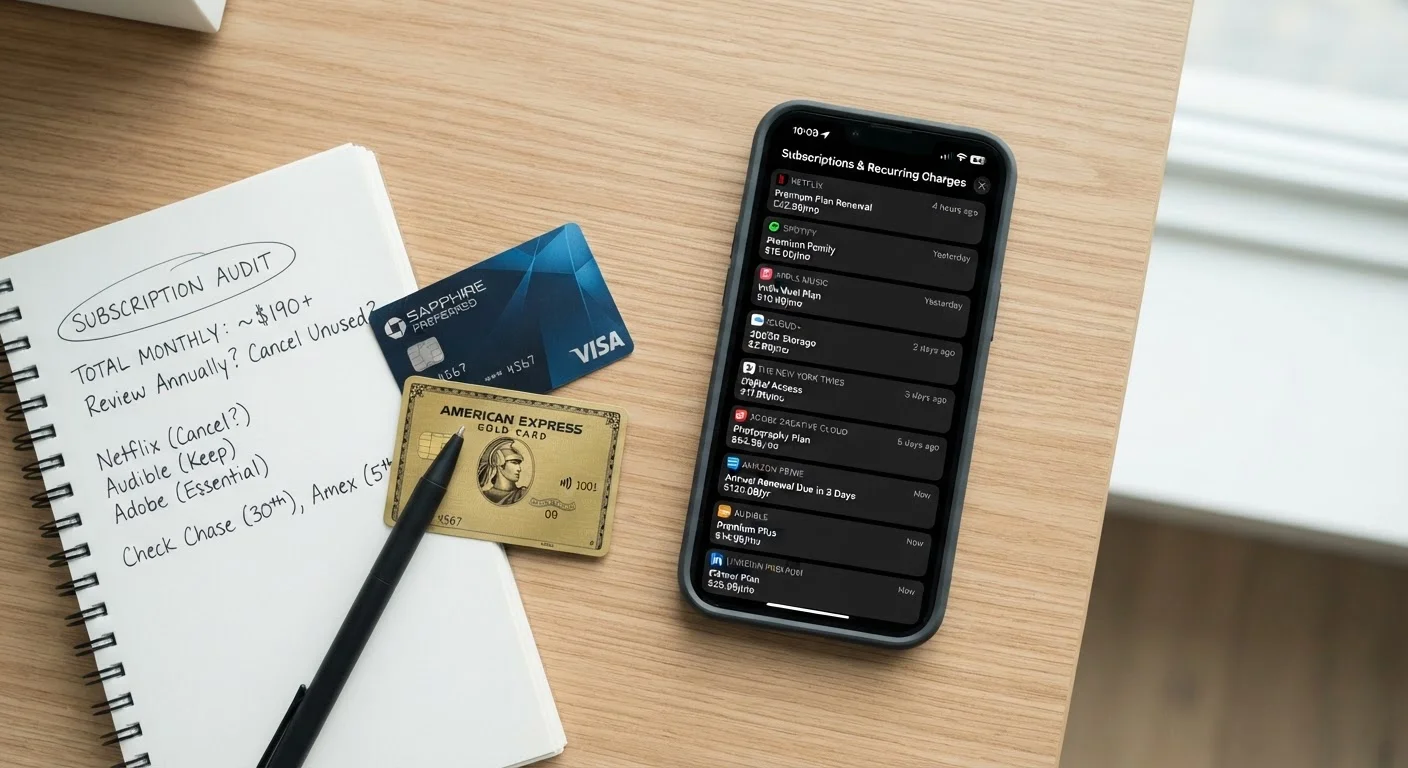
Subscription billing is designed to be frictionless — which is great when you're using a service, but a problem when you've forgotten you signed up. A free trial ends, a $4.99 charge appears, and unless you're watching your bank statement closely, it flies right past you. Multiply that by a few apps and a streaming service or two, and the total can surprise you.
This isn't rare. Studies on consumer spending consistently find that people underestimate their monthly subscription costs — often by a wide margin. The good news is that finding and cutting unused subscriptions takes less time than you'd expect. This checklist walks you through the process step by step.
For broader context on how small recurring costs affect your budget, see everyday spending patterns that quietly drain budgets.
Free Trials Convert Automatically
Most free trials require you to enter payment details upfront, and they automatically charge you when the trial ends — often without a reminder email. If you've signed up for a trial and forgotten about it, there's a good chance it's now a paid subscription. Always check the trial end date when you sign up and set a personal reminder to cancel if you don't want to continue.
What You'll Need Before You Start
You don't need any special software to complete this audit. The tools below are either free or built into devices and accounts you already have.
iPhone or iPad Settings
Access a complete list of active Apple subscriptions tied to your Apple ID in just a few taps.
Google Play Store (Android)
View and manage all subscriptions purchased through the Play Store under your Google account.
Bank or Credit Card Online Account
Review past 90 days of transactions to catch subscriptions billed directly — outside of app stores.
Email Inbox Search
Search for terms like 'renewal' or 'receipt' to surface billing emails from services you may have forgotten.
Notepad or Simple Spreadsheet
Record each subscription found — name, monthly cost, and last-used date — for a clear picture of your total.
The Subscription Audit Checklist
Work through these groups in order. Start with your devices — they hold the most complete picture of active subscriptions — then cross-check against your bank records to catch anything that slipped through.
Check Your Apple Account (iPhone/iPad Users)
Check Your Google Account (Android Users)
Scan Your Bank and Card Statements
Review Streaming and Entertainment Services
Ongoing Prevention
Cancelling Doesn't Always Stop the Charge Immediately
When you cancel a subscription, most services let you keep access until the current billing period ends — but some charge a final fee at the moment of cancellation. Read the confirmation screen carefully before confirming. If you see an unexpected charge after cancelling, contact the service's support team first; if that doesn't resolve it, your bank can assist with a dispute.
Once you know what you're paying for, the natural next step is building that into your monthly routine. A monthly budget review checklist can help you check for new charges before they accumulate.
After the Audit: What to Do Next
Once you've cancelled what you don't need, set a reminder to repeat this process every three months. New subscriptions have a way of sneaking back in — app updates, seasonal free trials, and bundled services all add to the pile over time.
If you're deciding whether to keep a paid app or switch to a free version, it helps to understand the real trade-offs involved. Our article on free vs. paid apps explains what you actually gain and give up either way.
For ongoing awareness of where your money goes month to month, tracking your spending without losing your mind offers practical methods that don't require complex spreadsheets or apps.