Why a Cluttered Home Screen Costs You More Than You Think
The average person unlocks their phone dozens of times a day. If each visit means scrolling through crowded screens looking for the right app, those seconds add up — and the low-level frustration compounds even faster. A disorganised home screen is the digital equivalent of a desk buried under papers: everything is technically there, but nothing is truly accessible.
The good news is that reorganising your home screen takes about ten minutes and requires no technical skill. The practices below work on both Android and iPhone and are aimed at anyone who has never thought too carefully about where their apps live.
Start With One Screen, Not the Whole Phone
Reorganising everything at once can feel overwhelming. Focus only on your first home screen — the one you see every time you unlock your phone. Getting that single screen right delivers most of the benefit. You can tidy other pages later, or simply hide them.
Core Practices for a Home Screen That Actually Works
These approaches are ordered from highest to lowest impact. Start with the first two and you will notice an immediate difference.
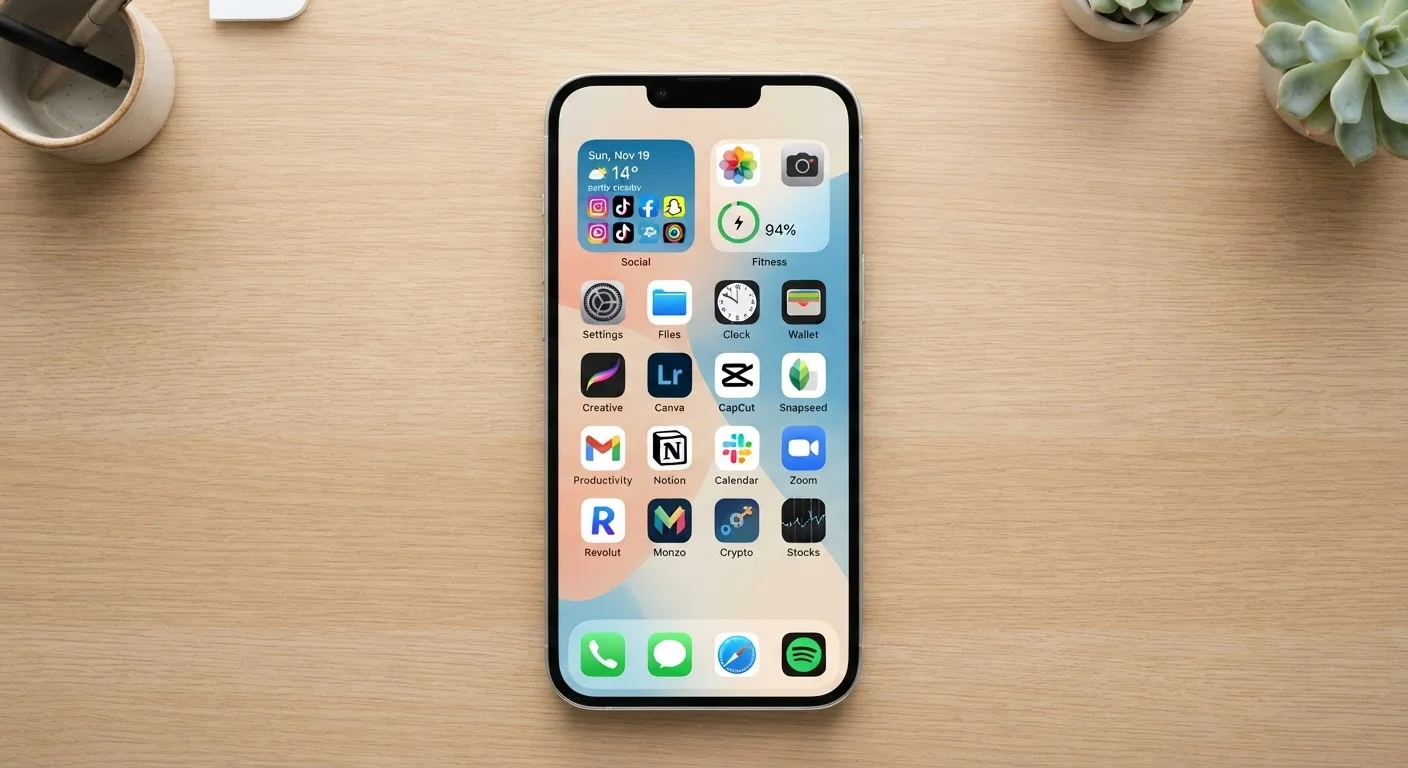
Move your five most-used apps to the dock or the top row of your first screen.
Your dock (the persistent strip at the bottom of the screen) is visible no matter which page you are on. Placing your highest-frequency apps there means you never have to swipe or search. Research on motor habits suggests that reducing the number of steps to reach a frequent action meaningfully lowers cognitive load.
Create folders grouped by what you are trying to do, not just by app type.
Organising by activity ("Getting Around," "Money," "Work") mirrors how you actually think in the moment, so you look in the right place instinctively. Purely category-based names like "Utilities" can be vague and hard to remember.
Delete or hide any app you have not opened in the past month.
Unused apps create visual noise and can occasionally run background processes that slow your device. If you are unsure whether to delete an app, most free apps can be re-downloaded in seconds, so there is very little risk in removing them.
Use your phone's built-in search instead of scanning for rarely used apps.
Both Android and iPhone have a system-wide search (swipe down on the home screen) that finds any app by name in under a second. For apps you use only occasionally, it is faster to search than to maintain a visible shortcut for them.
Hide app pages you do not need on a day-to-day basis.
iPhones running iOS 14 or later allow you to hide entire home screen pages while keeping the apps accessible via the App Library. Android launchers offer similar options. This removes clutter without permanently deleting anything.
Quick Wins You Can Do Right Now
If you want to start small, these actions take under two minutes each and make an instant difference. Pair a tidy home screen with a review of your app subscriptions — you may find you are paying for apps you forgot you had.
Going Further: Notifications and App Health
A tidy home screen is only part of the picture. If your apps are constantly pinging you, the visual calm you have created gets interrupted by noise. Consider visiting notification settings to decide which apps genuinely deserve your attention.
It is also worth knowing that a disorganised phone can sometimes mask deeper issues. If an app keeps acting up, the problem is rarely the icon's location — see why apps crash and what to do about it for practical guidance.
Home Screen Layout Varies by Device
The exact steps for creating folders, hiding pages, or accessing the app library differ between iPhone and Android — and between Android manufacturers such as Samsung, Google, and others. The principles here apply universally, but check your device's help documentation for precise instructions. Most actions involve a simple long-press on the home screen to enter edit mode.