Why Apps Ask for Permission in the First Place
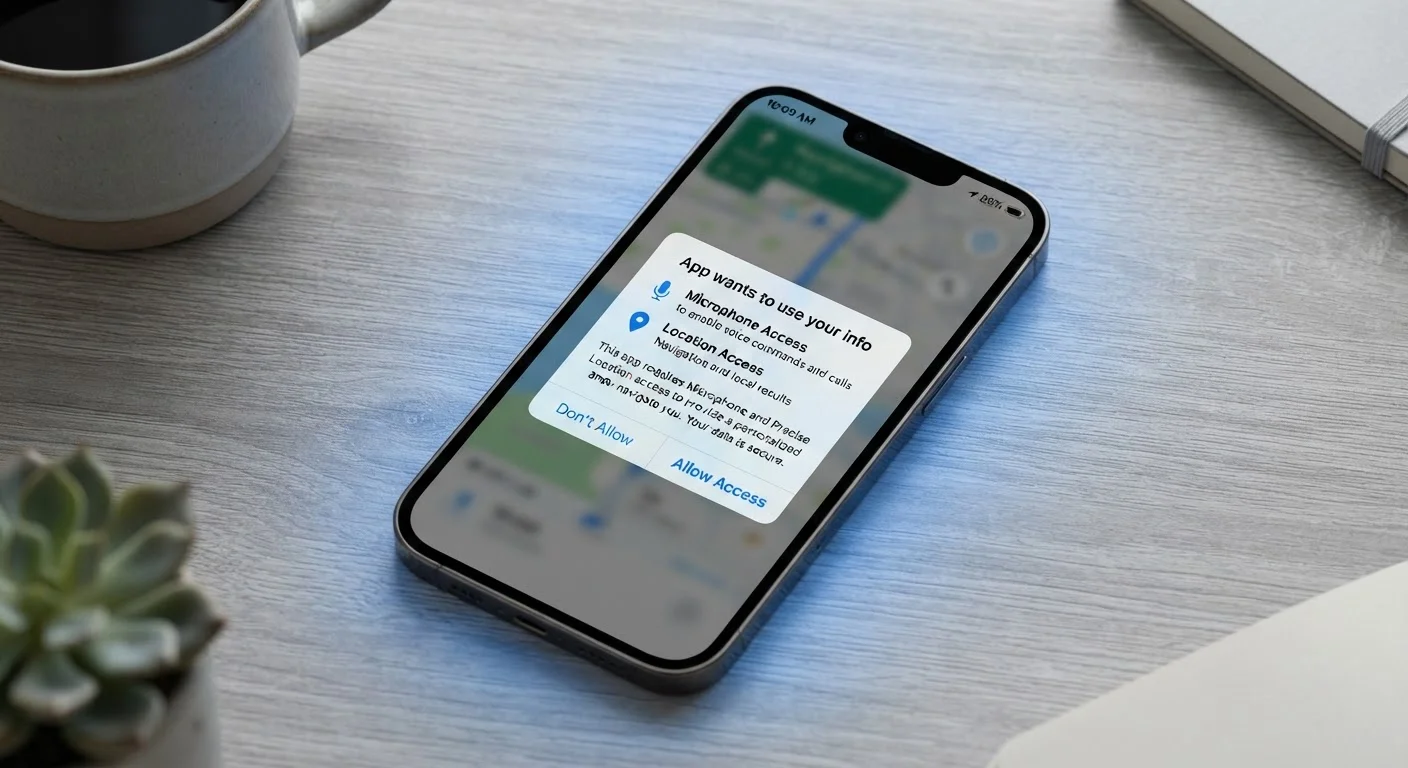
When you download a new app, it often presents you with a series of pop-up prompts: "Allow this app to access your location?" or "Can this app use your microphone?" These aren't formalities — they are your phone's built-in security system at work.
By default, apps on your smartphone cannot see your photos, hear through your microphone, or know where you are. The operating system — iOS on iPhones or Android on most other phones — deliberately walls off that data. An app has to formally request permission, and you have to say yes before access is granted.
This system exists because your phone contains a remarkable amount of sensitive information: your exact location, years of photos, every contact in your address book, and more. The permission model is what stands between that data and any app that happens to get installed. Understanding it means you're making an informed choice rather than just tapping "Allow" out of habit.
Permissions Work Differently on Browsers
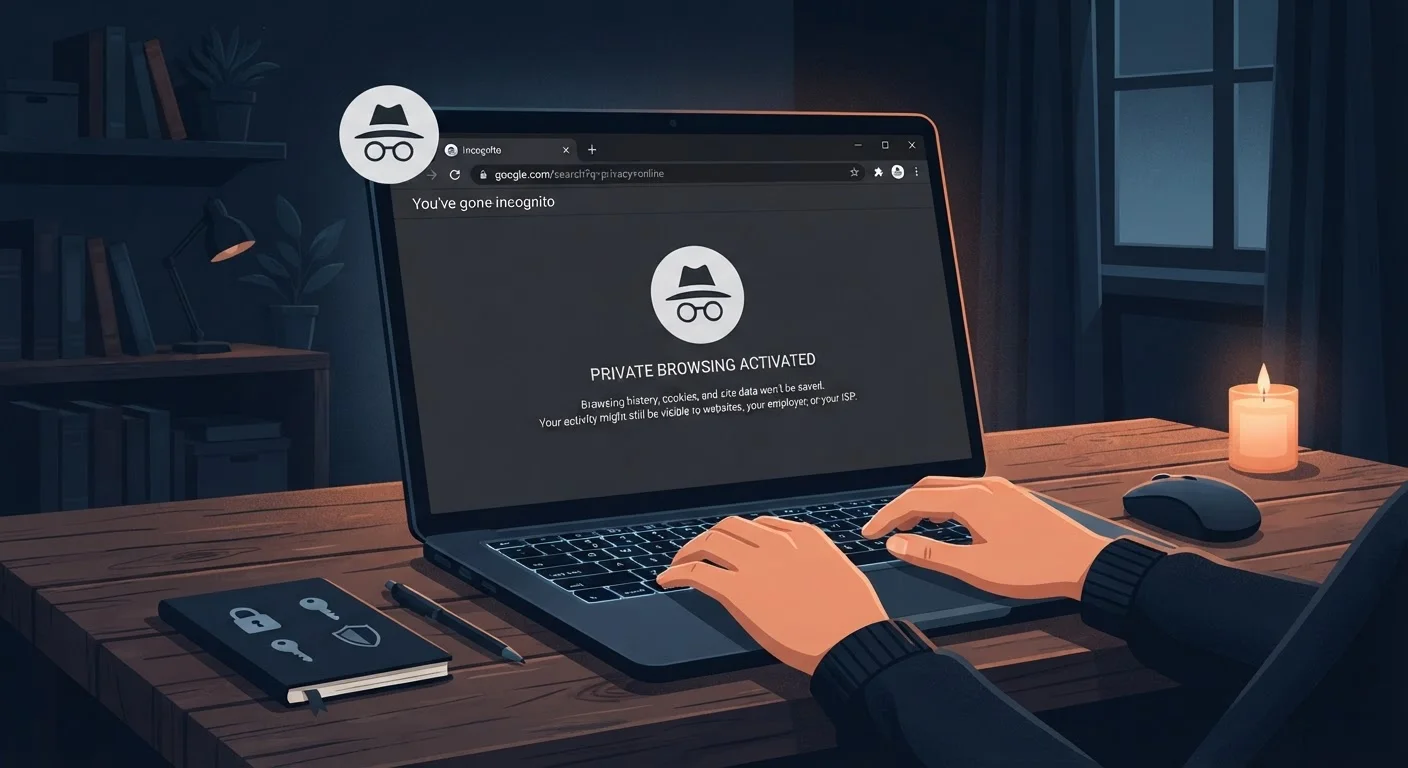
When you use a website in a browser rather than a dedicated app, permissions still apply — but they're managed by the browser itself, not your phone's app settings. Your browser will ask if a site can access your camera or location, and you can manage those under the browser's own privacy settings. For more on when to use an app versus a browser, see our explanation of the difference between apps and browsers.
The Most Common Permissions — and What They Actually Do
Here's a plain-language breakdown of the permissions you'll encounter most often:
- Location: Lets the app know where you are geographically. Options often include "Always," "Only while using the app," or "Never." A navigation app genuinely needs this; a recipe app probably does not.
- Camera: Gives the app the ability to activate your camera. Essential for video calling or photo apps, but worth questioning in other contexts.
- Microphone: Allows the app to record audio. Needed for voice messages or video calls. An app with no audio features requesting this is a warning sign.
- Contacts: Lets the app read the names and numbers stored on your phone. Some apps use this to find friends who also use the service — but they're also gaining access to people who never agreed to that.
- Photos/Media: Lets the app view or modify files in your photo library. On newer iOS versions, you can even grant access to specific photos rather than your entire library.
- Notifications: Allows the app to send you alerts. This doesn't expose personal data, but it can affect how often the app interrupts you.
For a broader look at the trade-offs built into app design, see our guide on free vs. paid apps.
Choose 'Only While Using' When in Doubt
For location, microphone, and camera access, most phones offer a middle-ground option: 'Only while using the app.' This means the app can access that feature when it's open on your screen, but not in the background. It's a practical default that balances functionality with privacy — you get the feature when you need it, without constant background access.
When a Permission Request Should Make You Pause
Not every permission request is reasonable. A useful rule of thumb: if the permission doesn't match the app's purpose, question it before approving.
A weather app asking for your location makes sense. That same weather app asking for access to your contacts and microphone does not. Mismatched permission requests are often a sign that an app is collecting data for advertising, analytics, or resale — not to improve your experience.
45%
Apps requesting more permissions than needed
Research from app privacy analysis firms has consistently found that a large share of popular apps request permissions beyond what their core functionality requires.
3 in 4
Smartphone users who tap 'Allow' without reading
Studies on mobile user behavior suggest most people approve permission requests quickly without reviewing what access they're granting.
You're never obligated to grant a permission just because an app asks for it. Try denying it and seeing whether the app still works for what you need. Many apps function perfectly well without every permission they request. If the app refuses to work at all without an unrelated permission, that itself is useful information about how the app is designed.
Apps you're already using regularly are worth reviewing too — not just new installs. See how subscriptions can quietly accumulate for a similar audit mindset applied to billing.
How to Review and Adjust Permissions on Your Phone
Changing your mind about a permission is easy and reversible. Here's how to do it on the two most common platforms:
- On iPhone (iOS):
- Go to Settings → scroll down to the app's name → tap it to see all permissions with individual toggles you can switch on or off.
- On Android:
- Go to Settings → Apps → select the app → tap Permissions to see what's been granted and adjust each one.
You can also view permissions grouped by type. On Android, go to Settings → Privacy → Permission Manager to see every app that has access to your camera, microphone, or location all in one place. iOS offers a similar view under Settings → Privacy & Security.
Making this a periodic habit — similar to reviewing your installed apps — keeps your privacy settings aligned with how you actually use your phone. If you're also thinking about the apps themselves, keeping your home screen organised is a natural next step.