The Two Boxes by Your TV: Modem vs. Router
Most homes have two networking devices sitting near each other — and most people have no idea which does what. Let's fix that.
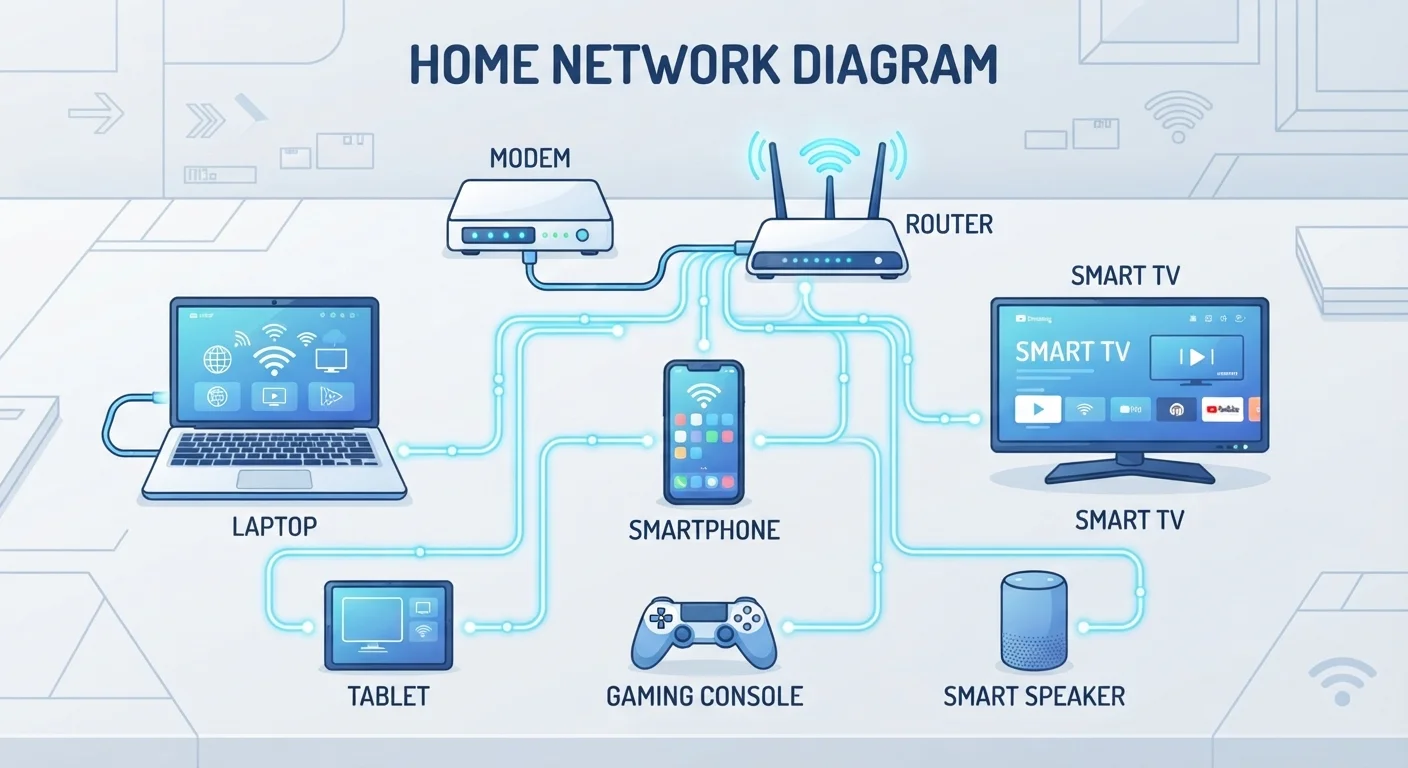
The modem is the device that connects your home to your internet service provider (ISP). Think of it as the front door: it translates the signal coming in from the cable, fiber, or phone line outside your house into data your devices can use.
The router is the traffic director inside your home. Once the modem brings internet in, the router splits that connection and sends it to every device — your laptop, phone, smart TV, and more — either over Wi-Fi or through a wired Ethernet cable.
Many ISPs now supply a single gateway device that combines both functions in one box. It's convenient, but understanding that these are two distinct jobs helps you troubleshoot problems later.
Modem
A device that connects your home to your internet service provider by translating incoming signals into usable data.
Router
A device that shares one internet connection among multiple devices in your home, either wirelessly (Wi-Fi) or via cables.
Wi-Fi
A wireless radio signal your router broadcasts so devices can connect to your home network without cables.
IP Address
A unique number assigned to each device so the network knows where to send data. Local IP addresses are private to your home network.
DHCP
A background system your router uses to automatically assign a unique IP address to each device that joins the network.
Bandwidth
The maximum amount of data that can travel through your internet connection at one time, often measured in Mbps (megabits per second).
How Data Actually Travels Through Your Home
Every time you load a webpage, data makes a round trip in milliseconds. Here's the simplified path:
- Your device sends a request (say, to load a website) wirelessly to your router.
- The router passes the request to your modem.
- The modem sends it out to your ISP's network, which routes it to the right server on the internet.
- The server sends the webpage data back along the same chain in reverse.
That entire journey — across your house, across the country, and back — typically happens in under a second. For a deeper look at how websites are found by name rather than by number, see our guide on how the DNS system works.
Place Your Router for Maximum Coverage
For the best Wi-Fi signal throughout your home, position your router in a central location — not tucked in a corner or locked in a cabinet. Keep it elevated and away from microwaves or cordless phones, which can interfere with the 2.4 GHz band.
Wi-Fi Bands: 2.4 GHz vs. 5 GHz Explained
Modern routers broadcast on two radio frequencies, called bands. You've probably seen both listed in your Wi-Fi settings.
- 2.4 GHz: Slower maximum speed, but travels farther and passes through walls more easily. Good for devices at a distance — smart bulbs, security cameras, devices in another room.
- 5 GHz: Much faster, but shorter range and more easily blocked by walls. Best for devices close to the router — streaming boxes, laptops used at a desk, gaming consoles.
Some routers use a feature called band steering, which automatically puts each device on the best band. Others display both as separate networks with different names (like "HomeNetwork" and "HomeNetwork_5G").
To understand which numbers — like Mbps — describe how fast each band performs, our guide to bandwidth and speed explains each metric in plain terms.
Local IP Addresses and Why Every Device Gets One
When a device joins your home network, your router assigns it a local IP address — a unique number like 192.168.1.4. This is how the router keeps track of which data goes to which device. Without unique addresses, your router wouldn't know whether to send an email to your phone or your laptop.
This assignment process is handled automatically by a system called DHCP (Dynamic Host Configuration Protocol). You don't need to configure anything — the router does it in the background every time a device connects.
Local IP addresses are private. They're only meaningful inside your home network. The outside internet never sees them directly — it only sees one shared public address assigned to your modem by your ISP.
For a full breakdown of both local and public addresses, see IP Addresses, Explained Without the Jargon.
Your Public IP Is Shared Across Devices
All the devices in your home share a single public IP address that the internet sees. Your router uses a process called NAT (Network Address Translation) to manage which device each incoming response belongs to. This is why websites can't distinguish your laptop from your phone based on IP alone.
Common Home Network Problems and What Causes Them
Most home network frustrations come down to a short list of root causes:
- Slow speeds throughout the house
- Often caused by too many devices sharing bandwidth, or your plan's speed being lower than expected. Try a wired connection to rule out Wi-Fi as the culprit.
- Dead zones (no signal in certain rooms)
- Walls, floors, and appliances block Wi-Fi. The 5 GHz band is especially affected. A Wi-Fi extender or mesh system adds coverage.
- Devices dropping off the network
- Usually a sign of router overload or a firmware issue. Restarting the router is often the first and most effective fix.
- One device can't connect
- If other devices are fine, the issue is with that specific device — try forgetting the network and reconnecting, or checking if its Wi-Fi is enabled.
If you want to build a stronger vocabulary around these concepts before diving into troubleshooting, Key Internet Terms Every Beginner Should Know is a solid starting point.
Avoid Resetting Instead of Restarting
There's an important difference between restarting your router (unplugging it for 30 seconds) and factory resetting it (holding the reset button). A factory reset erases your Wi-Fi name, password, and all settings. Only do this if you intend to reconfigure the device from scratch.