The Invisible Traffic Jam: Background Processes
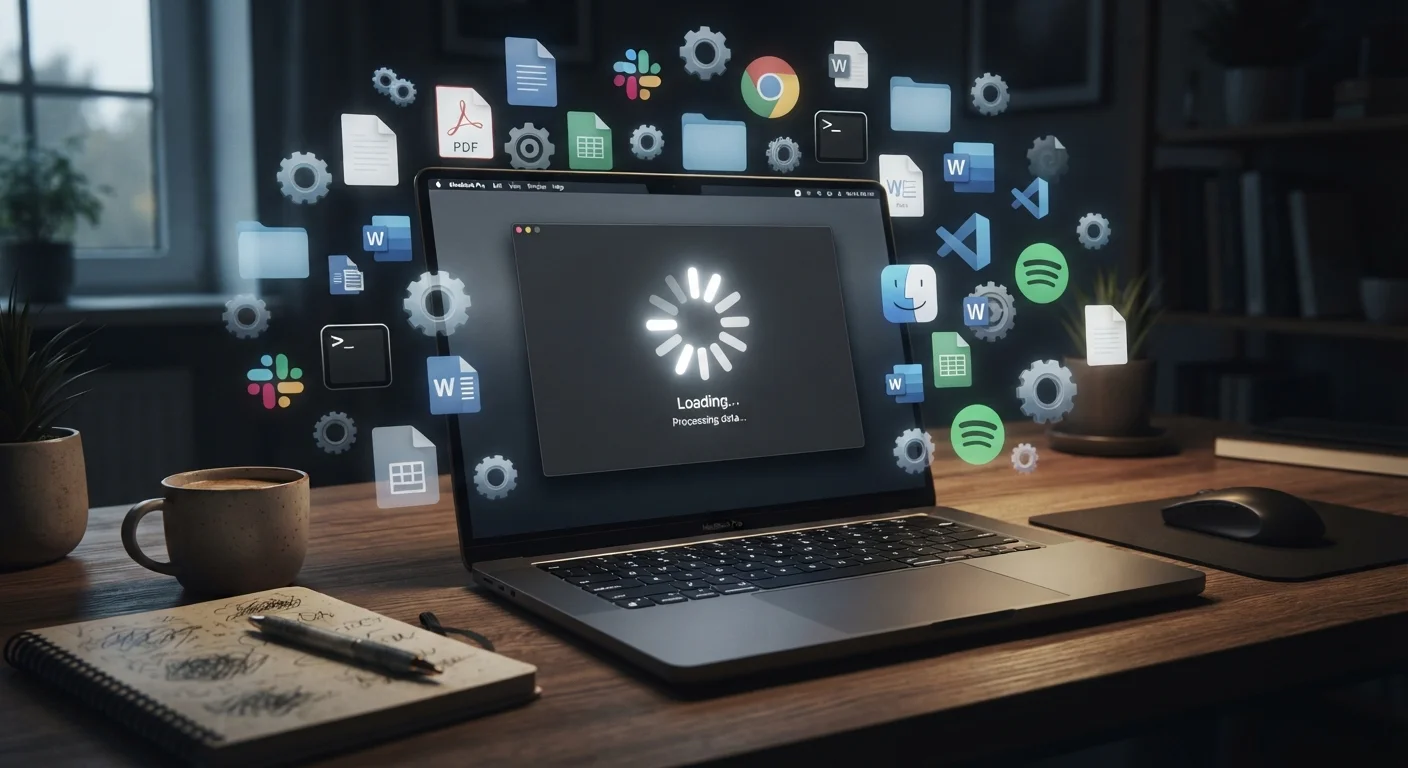
When you first turn on a new laptop, very little is running in the background. Over time, every app you install tends to add its own background services — small programs that launch automatically when Windows or macOS starts up. These services check for updates, sync files, monitor notifications, or simply stay ready to launch their parent app faster.
Individually, each process uses minimal resources. Collectively, dozens of them can consume a significant portion of your processor's capacity and RAM (random access memory — your computer's short-term working space) before you've opened a single program. The result is a system that feels sluggish right from startup.
Audit Your Startup Programs Regularly
Every few months, review which programs are set to launch automatically when your laptop starts. Disabling startup programs you don't need immediately can meaningfully reduce boot time and free up RAM for the tasks you actually care about. This takes only a few minutes and requires no technical expertise.
This is one of the most common and correctable causes of slowdown. Most operating systems include a way to review and disable startup programs — on Windows, this is found in the Task Manager under the Startup tab.
Storage: Fragmentation, Capacity, and Drive Wear
How your data is stored and how much free space remains both have a direct effect on speed. On older laptops with traditional spinning hard drives (HDDs), data is written across the physical disk in pieces. Over time, a single file may be spread across many separate locations on the disk — a condition called fragmentation. The drive's read head has to physically move to each location, which takes time. Newer solid-state drives (SSDs) don't have moving parts and aren't affected by fragmentation in the same way, but they do slow down when nearly full.
Operating systems rely on free storage space to manage temporary files and virtual memory — essentially using the drive as overflow when RAM runs short. A drive that's more than 85–90% full leaves little room for this and can cause noticeable performance drops.
85–90%
Storage capacity threshold that degrades performance
Technology educators and OS documentation consistently advise keeping storage usage below this level to maintain system performance, particularly for virtual memory functions.
~3 years
Typical timeframe users notice significant laptop slowdown
Industry observations and consumer surveys commonly identify the two-to-three-year mark as when performance degradation becomes noticeably disruptive for average users.
10–30°C
Temperature rise from blocked laptop vents
Hardware testing has shown that obstructed airflow — from dust or soft surfaces — can raise internal temperatures by this range, sufficient to trigger sustained thermal throttling.
Heat and Thermal Throttling
Processors generate heat during operation. Laptop cooling systems — typically a fan and a series of vents — are designed to manage this heat continuously. Dust accumulates inside those vents over months of use, restricting airflow and causing temperatures to rise.
To protect itself from damage, a processor will automatically reduce its operating speed when it gets too hot. This built-in protection mechanism is called thermal throttling. It's effective at preventing hardware damage but creates a direct, noticeable slowdown — especially during demanding tasks like video calls, editing, or gaming. Keeping vents clean and ensuring the laptop sits on a hard, flat surface (rather than fabric that blocks airflow) helps prevent this cycle.
For a broader look at how components like the processor and cooling system interact in portable devices, see what every component actually does in our smartphone breakdown — many of the same principles apply.
Software Demands Grow Faster Than Hardware Ages
Operating system updates and modern applications are continuously developed for current hardware. Each new version of Windows or macOS tends to require slightly more processing power and memory than the previous one. The same is true for browsers, productivity apps, and communication tools. A laptop that handled everything smoothly at launch may struggle with the same apps three years later simply because those apps have grown more resource-intensive.
This isn't a flaw — it reflects genuine improvements in features and security. But it does mean that hardware which was mid-range at purchase will feel underpowered sooner than premium hardware. It's worth knowing that slowdown from this cause is largely unavoidable without hardware upgrades.
Slowdown and Battery Aging Are Separate Issues
Slowdown caused by software demands is a distinct process from battery degradation, which affects how long your laptop runs unplugged rather than how fast it performs. A laptop can have a healthy battery and still feel slow — or vice versa. For more on battery health, see our article on common battery myths. If your device feels slow but your internet connection also seems sluggish, it's worth checking whether network issues might be a factor — several overlooked factors can quietly degrade your speeds.
Slowdown caused by software demands is separate from battery degradation, which is a parallel aging process. A laptop can have a healthy battery and still feel slow — or vice versa.
If your device feels slow but your connection also seems sluggish, check whether the issue might be network-related. Several overlooked factors can quietly reduce your internet speeds, and they're worth ruling out before assuming the laptop itself is the problem.