Step 1: Your Browser Needs a Street Address, Not a Name
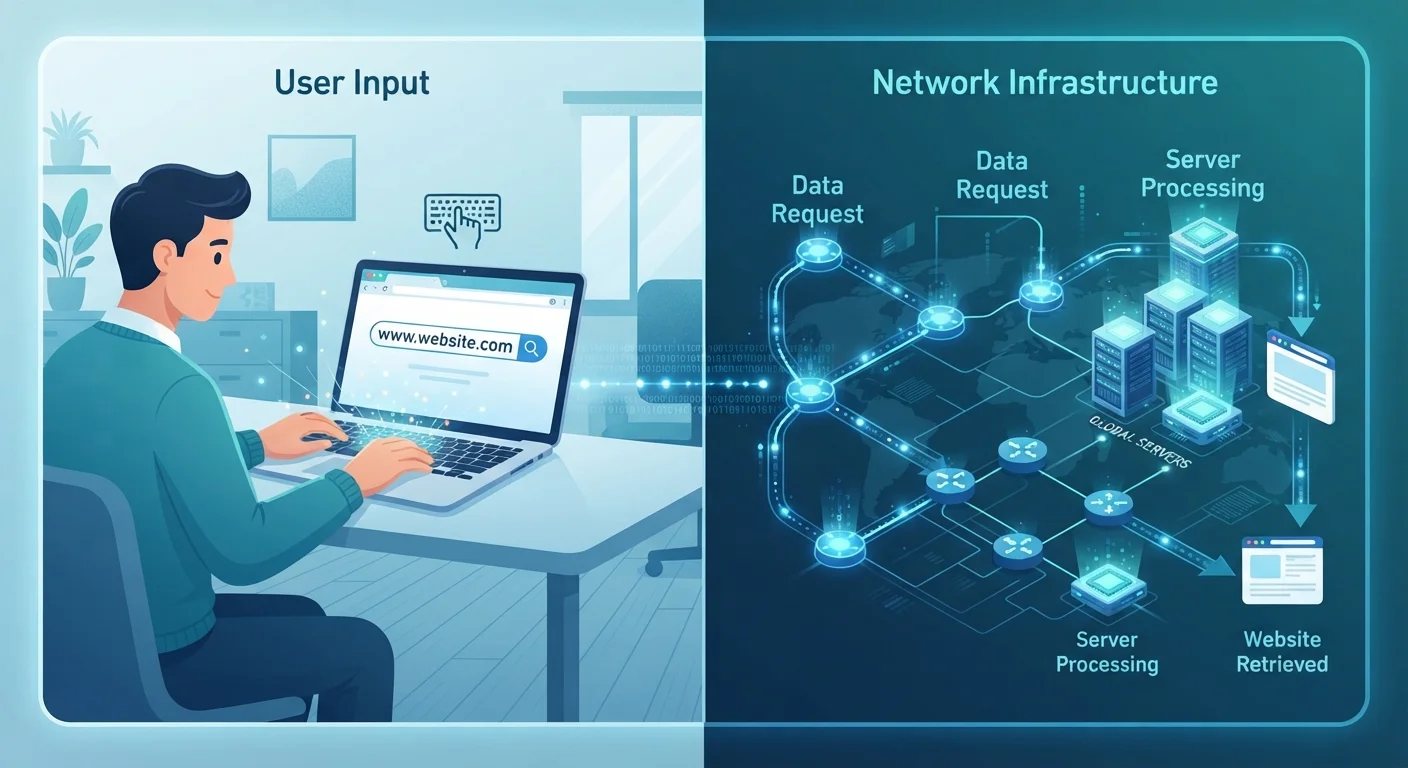
When you type something like www.example.com and press Enter, your browser faces an immediate problem: computers on the internet don't communicate using names. They use numerical IP addresses — strings of numbers that uniquely identify every device and server on the network. (Think of it like a city that uses only GPS coordinates, not street names.)
Before anything else can happen, your browser must translate that friendly domain name into an IP address. It does this through a process called a DNS lookup. DNS stands for Domain Name System — essentially the internet's address book. Your browser contacts a DNS server and asks, in effect, "What's the IP address for www.example.com?" The DNS server replies with the answer, typically in just a few milliseconds.
To go deeper on how DNS works, see our explainer on DNS: the internet's phone book. And for a plain-language breakdown of IP addresses themselves, check out IP addresses explained without the jargon.
Your Browser Checks Its Own Cache First
Before contacting a DNS server, your browser checks whether it already looked up the same domain name recently — it stores recent DNS results locally for a short time. Your operating system and router may also maintain their own DNS caches. This layered caching means many lookups never need to reach an external DNS server at all.
Step 2: The Handshake — Your Browser Knocks, the Server Answers
With the IP address in hand, your browser reaches out to the web server at that address. But the two don't just start sending files immediately — they first exchange a brief series of signals to confirm they can communicate reliably. This is called a TCP handshake (TCP stands for Transmission Control Protocol).
Think of it like two people picking up phones and confirming they can hear each other before starting a conversation. The browser sends a signal saying "I'd like to connect," the server responds "Confirmed, go ahead," and the browser replies "Great, starting now." This takes only a few milliseconds but is critical for ensuring data arrives correctly.
If the site uses HTTPS — which most do today — an additional step called a TLS handshake follows. This sets up encryption so that the data flowing between your browser and the server is scrambled and unreadable to anyone intercepting it. Our article on HTTP and HTTPS explains why that padlock in your browser bar matters.
< 1 sec
Typical time for a full browser request cycle
A standard page load on a modern broadband connection — including DNS, handshake, and rendering — completes in under one second under normal conditions.
~13
Root DNS servers in the global system
The global DNS infrastructure is anchored by 13 root server addresses, operated by various organizations, though each runs many physical machines worldwide.
~20–30ms
Average DNS lookup time
A typical DNS lookup takes between 20 and 30 milliseconds, though cached responses at the browser or OS level can resolve in under 1 millisecond.
Step 3: Requesting and Receiving the Page
Once the connection is established, your browser sends an HTTP request to the server — essentially a formal message saying "Please send me the files for this page." The server receives the request, finds the relevant files, and begins sending them back.
Here's something that surprises many people: the page doesn't arrive as one complete file. It travels as hundreds or thousands of small chunks called data packets. Each packet takes its own route across the internet and gets reassembled in the correct order when it arrives at your device. This is why a partially loaded page sometimes appears — your browser starts rendering content as packets arrive, rather than waiting for everything.
The server's response includes the page's HTML (the structure), which your browser reads and then uses to identify additional files it needs — stylesheets for visual design, JavaScript for interactivity, and images. Each of these triggers its own request-response cycle.
Speed Up Repeat Visits With Browser Cache
Your browser automatically saves copies of images, scripts, and stylesheets from sites you visit. This 'cache' means those files don't need to be re-downloaded every time, significantly speeding up repeat visits. If a page looks outdated or broken, clearing your cache forces the browser to fetch fresh copies from the server.
Step 4: Your Browser Builds the Page You See
As the files arrive, your browser's rendering engine assembles them into the visual page you see on screen. It processes the HTML to understand the page structure, applies CSS rules to determine layout and styling, and executes JavaScript to activate any interactive elements.
This entire process — DNS lookup, TCP/TLS handshake, HTTP request, packet delivery, and rendering — typically completes in under one second on a modern connection. The speed depends on factors like how far away the server is, how complex the page is, and the quality of your internet connection. For a deeper look at what those connection speed numbers actually mean, see our guide on bandwidth, speed, and latency.
What looks like a simple keystroke triggers a precisely choreographed sequence involving multiple servers, protocols, and data transfers — all invisible, and all designed to happen faster than you can blink.