What Is a Password Manager, Really?
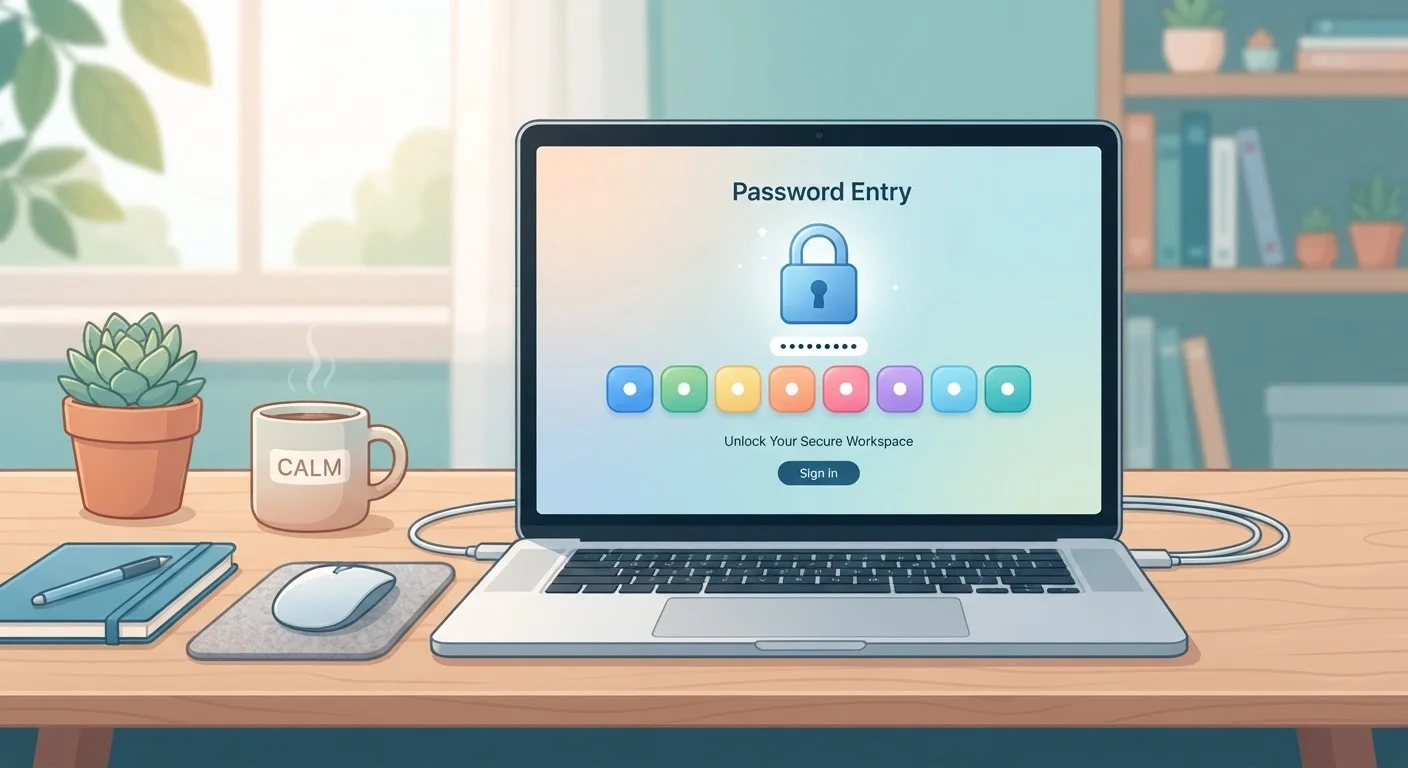
Think of a password manager as a secure digital keychain. Instead of keeping all your house, car, and mailbox keys loose in your pocket, you store them on one organized ring that you can access with a single key. A password manager does the same thing for your online accounts — it stores every username and password in one encrypted vault, and you unlock that vault with a single master password.
You don't need any technical background to use one. Most are designed to feel like a simple app, not a complicated security tool.
Master password
The single password you create to lock and unlock your password manager vault. It's the only one you need to memorize.
Encryption
A process that scrambles data into unreadable code so only someone with the right key — your master password — can unscramble it.
Vault
The secure, encrypted storage space inside your password manager where all your usernames and passwords are kept.
Browser extension
A small add-on installed in your web browser that lets your password manager automatically fill in login forms on websites.
Credential stuffing
An attack where hackers use leaked username and password combinations from one site to try to break into accounts on other sites.
Password generator
A built-in tool inside password managers that creates long, random, hard-to-guess passwords for you automatically.
Why You Actually Need One
The average person has dozens of online accounts — email, banking, shopping, streaming, and more. Remembering a unique, strong password for each one is genuinely impossible without help. So most people do one of two things: reuse the same password everywhere, or use simple passwords that are easy to guess.
Both habits create real risk. When one site you use is breached and your password is leaked, attackers try that same password on other sites automatically. This is called credential stuffing, and it's extremely common. A password manager solves this by generating and storing a different, complex password for every site — so a breach on one account can't cascade into others.
This is a core piece of the internet safety habits that protect most people online. You can also pair it with the steps in our gadget security checklist for a more complete safety picture.
Start With Your Most Important Accounts
You don't have to update every password on day one. Focus first on your email account, then your bank or financial accounts — these are the highest-value targets. Once those are secured with unique, strong passwords, work through the rest at your own pace.
How Password Managers Work
When you save a password, the app scrambles it using a process called encryption before storing it. Only your master password can unscramble it. Even if someone somehow accessed the company's servers, they would see only unreadable data — not your actual passwords.
Most password managers also include a browser extension — a small add-on that sits in your web browser. When you visit a login page, the extension recognizes it and fills in your saved username and password automatically. When you create a new account, it offers to generate a strong, random password and save it for you on the spot.
Syncing happens behind the scenes, so a password you save on your laptop is immediately available on your phone too.
Setting Up Your First Password Manager
Getting started is a straightforward process that most people complete in under 20 minutes:
- Choose a password manager. Several reputable options exist with free tiers. Look for one that supports your devices and has a clear privacy policy.
- Create your account. You'll be asked to set your master password. Make it long and memorable — a passphrase of three or four unrelated words works well. Write it down and keep it somewhere physically secure until you have it memorized.
- Save your recovery options. Follow the setup prompts to configure account recovery. Don't skip this step.
- Install the browser extension. This unlocks the autofill feature that makes day-to-day use effortless.
- Start saving passwords as you log in. You don't have to import everything at once. Each time you log into a site, let the manager save that password. Over a few weeks, your vault fills up naturally.
- Replace weak passwords gradually. Use the built-in password generator to update old, reused passwords — starting with your most important accounts like email and banking.
Autofill Works on Mobile Too
Most password managers include a mobile app that integrates with your phone's autofill system. Once set up, it works inside apps and mobile browsers just like the desktop extension. Check your phone's accessibility or autofill settings to enable it after installing the app.
Common Beginner Worries — Answered
"What if the company gets hacked?" Because your data is encrypted with your master password — which the company never stores — a server breach exposes only scrambled data. Your actual passwords remain protected as long as your master password is strong and unique.
"I'm not a tech person." Password managers are built for everyday users. The browser extension handles almost everything automatically. You don't need to understand encryption to benefit from it.
"What about the passwords I already have?" You don't need to start fresh. Import existing passwords if the tool allows it, or simply save them one by one as you log into sites. Either approach works.
Getting organized with your passwords is a lot like making a first budget — it feels like a big task until you actually start. If you're building other digital habits, our beginner's budgeting walkthrough uses the same step-by-step approach for your finances.
Never Share Your Master Password
Your master password should never be shared with anyone — including customer support for the password manager itself. Legitimate services will never ask for it. If you receive a message requesting your master password, treat it as a phishing attempt and report it.