Before You Begin: What You Need to Know
Switching to a new phone feels daunting mainly because of one fear: losing everything you've built up — contacts, photos, app logins, years of text messages. The good news is that modern smartphones are designed to make this transfer nearly automatic. You don't need to be a tech expert, and you don't need to manually copy anything file by file.
The key is understanding that your phone data lives in two places: on the device itself and in the cloud (online servers tied to your account). Most of what feels stored "on your phone" is actually already backed up online. This guide walks you through confirming that backup, running the transfer, and verifying nothing was missed.
Once you're set up on your new phone, you may also want to organize your home screen so your fresh start stays tidy.
What you will need
Step-by-Step: Transferring Your Phone
Follow these steps in order. Skipping the backup step is the one mistake that causes real data loss, so treat it as non-negotiable.
Back Up Your Old Phone
iPhone: Go to Settings → tap your name at the top → iCloud → iCloud Backup → Back Up Now. Wait for it to complete. You'll see a timestamp confirming the last successful backup.
Android: Go to Settings → Google → Backup → tap Back up now. This saves your contacts, app data, call history, and device settings to your Google account.
Choose Your Transfer Method
Both major platforms offer a dedicated setup tool that runs when you first power on your new phone:
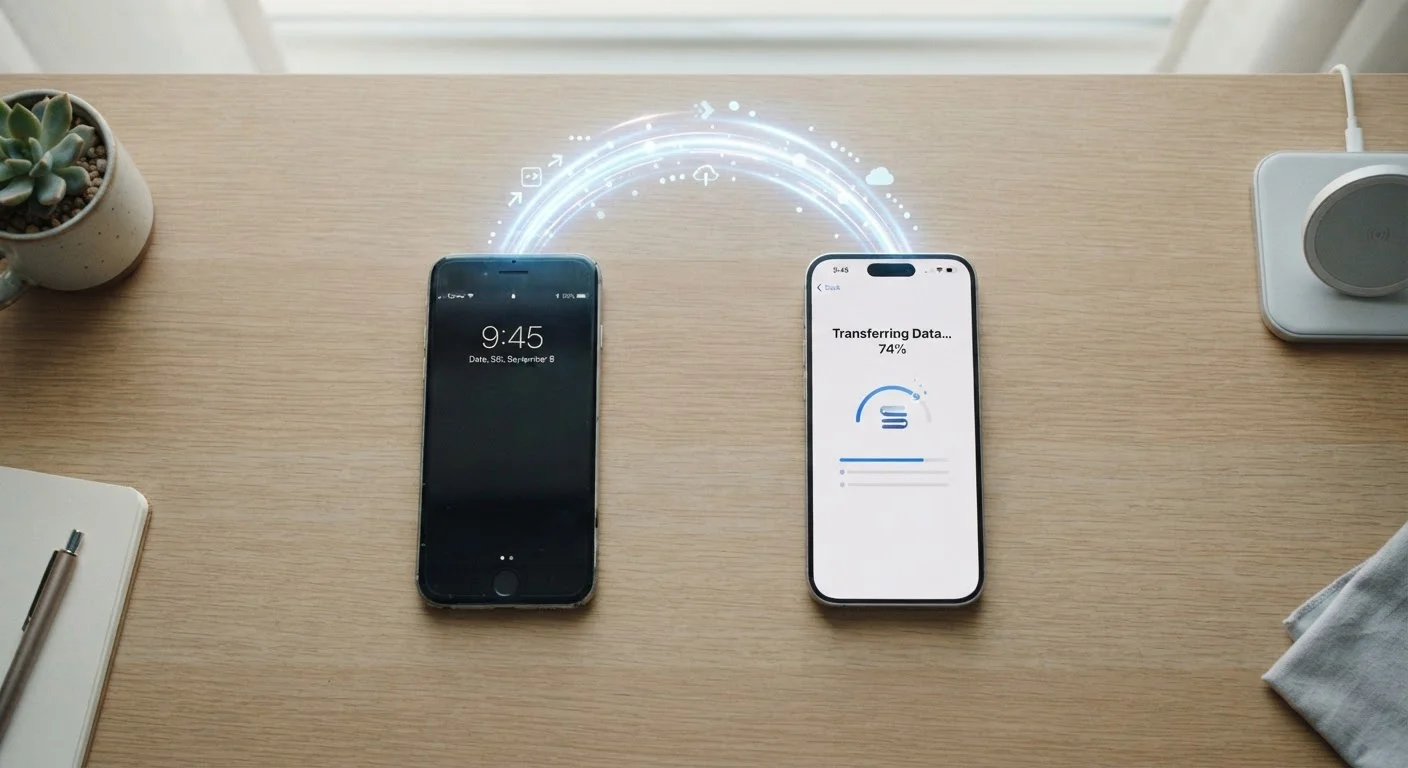
- iPhone to iPhone: Use Quick Start. Hold your old iPhone near your new one when prompted during setup. Follow the on-screen pairing instructions. Your new phone restores from the iCloud backup you just created.
- Android to Android: During setup, tap Copy apps and data from your old phone. You can use a cable (faster) or Wi-Fi. Follow the prompts — your Google account data and apps transfer automatically.
- Switching between platforms (e.g., iPhone to Android or vice versa): Use the dedicated migration app. Google offers the Switch to Android app for iPhone users; Apple offers Move to iOS for Android users switching to iPhone. Both are available in their respective app stores.
Sign In to Your Account on the New Phone
Once the transfer finishes, sign in with your Apple ID or Google account when prompted. This step is what unlocks your purchased apps, re-downloads your app data, and connects your photos library. Without signing in, your apps may appear as empty shells without your saved progress or settings.
Let Apps Re-Download
Your apps don't move as installed files — they re-download fresh from the App Store or Google Play Store. This happens automatically in the background after setup. Leave your new phone on Wi-Fi and plugged in for an hour or so to let everything install. You can use the phone in the meantime, but avoid restarting it until the downloads complete.
Transfer Photos and Files Not Covered by the Backup
Most photos sync via iCloud or Google Photos automatically, but if you stored photos only locally (not in a cloud library), transfer them manually:
- Connect your old phone to a computer via USB and copy the photo folder to your hard drive, then transfer to the new phone.
- Alternatively, upload to Google Photos or iCloud Photos from your old phone, then sign in on the new phone to access them.
The same applies to any downloaded files stored locally in apps like Files (iPhone) or Files by Google (Android).
Keep Your Old Phone Until You're Sure
Don't factory reset or sell your old phone the same day as the transfer. Give yourself two to three days of using the new phone to discover anything that didn't carry over. Once you're confident everything is in place, you can safely wipe the old device.
After the Transfer: What to Check
Even a smooth transfer deserves a quick audit. Work through this checklist on your new phone before wiping or selling your old one:
- Contacts: Open the contacts app and scroll through. All names should be present.
- Photos: Open your gallery or photos app and confirm your library is intact, especially older albums.
- Apps: Your app list should mirror the old phone. Any app that fails to reinstall can be found manually in the App Store or Google Play Store.
- Messages: Check a few important text threads to confirm they carried over.
- Two-factor authentication apps: Apps like Google Authenticator or Authy require a separate migration step — check each app's own transfer instructions before deactivating your old device.
Understanding how your accounts stay synchronized going forward is also worth a read. Learn how device syncing works so your phone, tablet, and computer all stay in step automatically.
Two-Factor Authentication Apps Need Special Attention
If you use an authenticator app (such as Google Authenticator, Authy, or Microsoft Authenticator) for account security, these do not transfer automatically with the rest of your phone. Losing access to these codes can lock you out of important accounts. Before deactivating your old phone, open each authenticator app and follow its specific account-transfer or export process.